
New user with some basic workflow questions
3,805 views
Skip to first unread message

Eirinn Mackay
May 12, 2015, 4:31:03 AM5/12/15
to bonsai...@googlegroups.com
Hi,
First of all, congratulations on this amazing system - it's exactly what I've been looking for, and after reading the Frontiers paper I'm extremely impressed with the level of flexibility you've given to the users while maintaining high performance. I had no idea that .NET could do this kind of thing.
That said, I feel like I've been thrown into the deep end when it comes learning how to construct a workflow. I've watched the video tutorial and now I'm able to track a swinging pendulum that I set up on my wall (as a learning exercise), just like in the Frontiers paper. But now I want to trigger an action, like playing a sound, when the pendulum reaches the end of the swing. I've got a RoiActivity and RoiActivityDetected transform which works, setting the bool output to be true/false. But then how do I make a sound play when the value is true? The AudioPlayback sink doesn't work, it just has a red node.
In a more general sense, I wish there was better feedback about what kinds of input a particular node demands, rather than a blunt "no method overload found". I looked at the source for AudioPlayback.cs and I can see that it expects a Mat object (an OpenCV datatype, I think) but that hasn't helped me. Ideally, each object should have the inputs and outputs listed in the description so that we can easily see it when building a workflow.
So, my questions are: is there a way to trigger an arbitrary sound to play when a condition is met? and secondly, is there a guide I should have followed to help me figure this out?
First of all, congratulations on this amazing system - it's exactly what I've been looking for, and after reading the Frontiers paper I'm extremely impressed with the level of flexibility you've given to the users while maintaining high performance. I had no idea that .NET could do this kind of thing.
That said, I feel like I've been thrown into the deep end when it comes learning how to construct a workflow. I've watched the video tutorial and now I'm able to track a swinging pendulum that I set up on my wall (as a learning exercise), just like in the Frontiers paper. But now I want to trigger an action, like playing a sound, when the pendulum reaches the end of the swing. I've got a RoiActivity and RoiActivityDetected transform which works, setting the bool output to be true/false. But then how do I make a sound play when the value is true? The AudioPlayback sink doesn't work, it just has a red node.
In a more general sense, I wish there was better feedback about what kinds of input a particular node demands, rather than a blunt "no method overload found". I looked at the source for AudioPlayback.cs and I can see that it expects a Mat object (an OpenCV datatype, I think) but that hasn't helped me. Ideally, each object should have the inputs and outputs listed in the description so that we can easily see it when building a workflow.
So, my questions are: is there a way to trigger an arbitrary sound to play when a condition is met? and secondly, is there a guide I should have followed to help me figure this out?

Niccolò Bonacchi
May 12, 2015, 6:14:42 AM5/12/15
to Eirinn Mackay, bonsai...@googlegroups.com
Hi Eirinn,
--
N
Thanks for your interest in Bonsai, you are absolutely right, we are working on documenting Bonsai and specifically on a solution to display both input requirements and output data types of every node. For the output you can just right click on any node and the first option of the context menu should display the data type.
For your specific questionm, Gonçalo is preparing a more detailed answer but as a hint you can look in the DSP package for the FunctionGenerator node if you need pure tones or the Audio Reader node in the Audio package to load a *.wav file. Basically you need to load the sound first and feed it to the playback node if something happens.
--
N
P.S. sorry for the dup, should have replied all
--
N
--
You received this message because you are subscribed to the Google Groups "Bonsai Users" group.
To unsubscribe from this group and stop receiving emails from it, send an email to bonsai-users...@googlegroups.com.
Visit this group at http://groups.google.com/group/bonsai-users.
To view this discussion on the web visit https://groups.google.com/d/msgid/bonsai-users/0ea4b6e2-da06-4721-9656-c6a370cc699b%40googlegroups.com.
For more options, visit https://groups.google.com/d/optout.

goncaloclopes
May 12, 2015, 7:35:05 AM5/12/15
to bonsai...@googlegroups.com, eirinn...@gmail.com
Hi Eirinn,

Basically it just takes the boolean value from the key workflow and uses that to evaluate the condition. When the state of the key test is True, the data can go through; otherwise it is filtered out (dropped).


First of all, welcome to the forums! I'm happy you're willing to give Bonsai a try and that you're providing this feedback. It is very useful to help us decide how to improve the system.
Indeed, presenting information about possible inputs is something that has been debated about since the very first version. The reason why this is difficult in general is that Bonsai nodes can have extreme flexibility in which kinds of inputs they can take and this can be in extreme cases even determined dynamically (i.e. its not fixed).
However, it's true most of them can only handle a specified subset of input types; otherwise they usually accept any type. At least for these nodes (which is the vast majority) it would be useful to have this information displayed to the user. Of course, a more comprehensive reference manual about the behavior of each node would help immensely in this as well, which is also something that has been in the plans for quite a while...
Anyway, regarding the problem at hand, I think I can provide a few pointers. Sorry for the long answer but as I hope you will see there is quite a lot of depth to Bonsai that is not immediately apparent, and this is a good example for exploring these questions. Let me know if anything is not obvious. In the end if things are not clear I can just post an example workflow that works and we can keep discussing as needed.
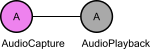
Ok, starting with the audio functions. As you've correctly inferred, the AudioPlayback node takes in an OpenCV Mat, which is the datatype chosen to represent any digital time series in Bonsai. The best way to try out this node is to either feed in the output of the microphone directly like this:
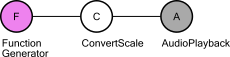
which essentially creates a feedback "echo" system; or you can use FunctionGenerator to generate synthetically the waveforms:
in this case you may have to set the Frequency parameter to 10 and the Scale to 100 or 1000 before you can generate anything audible.
In the latest version you can also use AudioReader to load in a WAV file but I'll leave it as an exercise ;-)
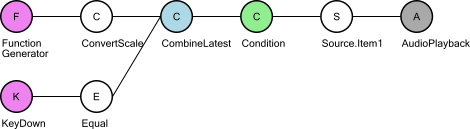
Now the question would be how to trigger this playback from an arbitrary event, like your ROI activation. The trick here will be to switch playback on and off. There are essentially two ways to do this, depending on what you want to achieve. One way is to simply "gate" the data coming in from FunctionGenerator. In this way, the source is always generating data, but you either allow it to go through to the AudioPlayback or not depending on a boolean value. I will use a KeyDown node where I test for a specific key to simulate a source of boolean values, but you can replace this by your ROI test. This would look something like the following:
Breaking this down, you have two main branches: one for generating the audio signal (FunctionGenerator + ConvertScale), another to compute the toggling signal (KeyDown + Equal).
First you need to somehow correlate these two data streams together, as the behavior of your final sound stream now depends on the state of both streams. CombineLatest is a common way to do this: it joins the latest data from both data streams in a single combined state tuple (Item1;Item2). Now we can use this combined state to make decisions. We will use a Condition node to decide whether the sound packet goes through or not.
Condition works as something like an "If" or "Switch-Case" statement in other programming languages. Data will only go down the Condition branch if some test evaluates to True. You can specify the nature of the test by double-clicking the Condition node and changing the nested workflow inside. In this case, we want to specify that the test evaluates to True when the state of the key workflow is True. This state is now inside Item2 of the combined state being output from CombineLatest (you can check this by right-clicking on CombineLatest and inspecting its output). In the end, the workflow inside Condition would look something like this:
Basically it just takes the boolean value from the key workflow and uses that to evaluate the condition. When the state of the key test is True, the data can go through; otherwise it is filtered out (dropped).
In the end, we just select the sound packets (Item1 from the CombineLatest output) and send that to the AudioPlayback. With this workflow, you should have a pure tone being played that either stops or finishes depending on which key you press (you have to pick which key controls this in the Equals node).
Now what happens with this way of doing it is that the sound will always be "playing". Effectively what we designed is a dynamic "mute" button. The potential problem is that this way you have no control over where the sound is exactly when you play it...
If you want the sound to play from the beginning every time you press a key, you have to somehow "start" the sound playback only when the key happens. Imagine for example you had the original FunctionGenerator workflow but now you start and stop it dynamically based on a key press. Whenever something you want to do feels like you need to start/stop workflows on the fly, you probably need to use SelectMany.
SelectMany is a complicated beast to explain succinctly because you can do so much with it. However, one of the best ways to think about it is literally taken from its name. The name actually comes from the Reactive Extensions (Rx) framework, and before that from SQL, a popular language used to query databases. It turns out a good way to think about Bonsai is just as a language that allows you to build graphical queries over "live" databases (i.e. data streams). Each element coming through one of these data streams represents a "row", and it's properties are the "attributes" or "columns" of the database.
In this framework, a "Select" operation is when you take one row (an element) and project (i.e. transform) some of its attributes to generate a result. For example, I can take a MouseMove data stream where rows are XY positions whenever I move my mouse, and I can "Select" a result where I multiply both X and Y values together. You can easily imagine many such operations, and all of Bonsai's DSP and Vision operators are simple "Select" operations in this sense.
Now another interesting possibility is when you want to "SelectMany" rows. What this means is that you take your input element, but now instead of doing some kind of transformation that will generate a new output "row", you want to actually expand it into "many" rows. If you think about your trigger data stream that will play a sound for each event, you are in this situation. For each individual input "row" (or trigger event), you want to generate a sequence of "many" sound packets that will be sent to the AudioPlayback node.
Another (potentially simpler) way to think about it. Imagine you had the following workflow:
This is simply our original FunctionGenerator worflow, but now with the addition of a Take operator that specifies that we will only generate a fixed number of sound packets (e.g. 100). Now if we go back to the scenario of playing a sound whenever a key is pressed, what we really want is to start this workflow when the key is pressed and collect all the generated packets. That's exactly what SelectMany does so it turns out we can reduce this scenario to the following workflow:
Where the workflow that is "played" every time the key is pressed is specified inside the SelectMany node, and is simply:
So again, and summing up, the only thing we are doing is playing the FunctionGenerator workflow whenever the key is pressed, and sending all the generated packets to the AudioPlayback.
I will leave the rest of the problem again as exercise, but do let us know if any issues pop up. The way to think about these problems in Bonsai can be quite compact, but it is often very different from how you would think about it in a traditional programming language so it takes some time getting used to.
Thanks for the feedback. I'm always looking forward to hear about nice new directions we can extend Bonsai to.
Cheers,
Eirinn Mackay
May 12, 2015, 9:08:27 AM5/12/15
to bonsai...@googlegroups.com, eirinn...@gmail.com
Wow, thanks for that excellent writeup! I managed to follow that without too much trouble and now my ROI trigger works.
It's not intuitive to me why we need the CombineLatest node before the Condition - it feels like I should be able to plug the bool output from the ROI directly into the Condition to make a kind of gate for the audio signal. But I think I get it now, that we need to combine the signals into a stream so that they can be gated in sync. I'm certainly glad I asked here on the forum because I wouldn't have figured that out by myself! Hopefully this post will be helpful to others.
My next newbie question: how can I calculate the speed of a moving object? I can easily get the X/Y centroid of my swinging pendulum, but there doesn't appear to be a way to automatically extract a vector from it, nor can I figure out how to subtract one position from the previous to calculate the velocity myself. Is there a node I've missed, or do I need to write some Python code for this? Tracking animal speed & direction is a big part of my work (as for many behaviouralists) so it would be nice to have easy access to that data.
Cheers,
Eirinn
It's not intuitive to me why we need the CombineLatest node before the Condition - it feels like I should be able to plug the bool output from the ROI directly into the Condition to make a kind of gate for the audio signal. But I think I get it now, that we need to combine the signals into a stream so that they can be gated in sync. I'm certainly glad I asked here on the forum because I wouldn't have figured that out by myself! Hopefully this post will be helpful to others.
My next newbie question: how can I calculate the speed of a moving object? I can easily get the X/Y centroid of my swinging pendulum, but there doesn't appear to be a way to automatically extract a vector from it, nor can I figure out how to subtract one position from the previous to calculate the velocity myself. Is there a node I've missed, or do I need to write some Python code for this? Tracking animal speed & direction is a big part of my work (as for many behaviouralists) so it would be nice to have easy access to that data.
Cheers,
Eirinn
goncaloclopes
May 12, 2015, 10:10:17 AM5/12/15
to bonsai...@googlegroups.com, eirinn...@gmail.com
Yes, you will probably find that some operations you would expect would be trivial to do are still a bit awkward to express in the language. This is mostly because our initial focus was on guaranteeing absolute generality as a programming language first and foremost.
However, now that most of the language aspects are crystallizing I would expect efforts to shift towards making more and more of these operations easier, and to decide which ones should go in it's very useful to have informed user feedback ;-)
On that note, yes, I can also envision a more general gating node where you can just feed in a boolean input stream to gate another node. This is clearly very easy and doable, it's simply not there yet.
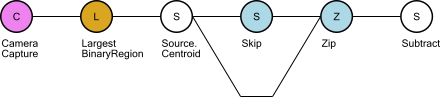
About extracting the speed vector, also very interesting and useful, but also not there yet. You can definitely code this one in Python, but actually there is indeed a way to implement this in basic Bonsai, so I'll cover this one since I think it is also very informative as an example of how to use the framework. Essentially, the diff workflow would look something like this:
The LargestBinaryRegion node is just a NestedWorkflow grouping all the image processing pipeline you use to extract the centroid (just for brevity and clarity). Its output is the Point2f you get out by extracting Centroid from the largest connected component.
The key insight to understand how to do this in Bonsai is thinking of a derivative as a correlation of a data stream with its past! To do this, we do a trick with the Zip operator. Zip essentially correlates two input data streams by matching their elements pairwise one-to-one. Meaning that if you have one input stream [A, B, C, ...] and another input stream [1,2,3, ...] you will get the Zip output to be [(A,1);(B,2);(C,3),...), independently of the precise time of when these inputs arrive! The first element of the letter inputs will always match the first element of the numbers input, even if the first 3 letters (A,B,C) arrive before the second number (2).
Now in order to correlate the input stream with its past we first use the Skip node with a parameter of 1, which means the first element of the sequence will be skipped, and we Zip that sequence with the original sequence without the Skip, meaning it starts normally from the beginning. What you obtain in the end are the following sequences:
Skip: [T1, T2, T3, T4, ...]
Input: [T0, T1, T2, T3, ...]
Zip: [(T1,T0);(T2,T1);(T3,T2);(T4,T3)]
Then we just use subtract and we have the speed vector.
Now if you want to make this into a more regularly reusable node, you can group and save this pattern into a Bonsai file.
I've attached the "diff.bonsai" node with this pattern. If you drag and drop this file onto the bonsai workflow, you will be able to compute the diff of any input whose data type supports the subtraction operator.
Hope this is clear and also helps seeing how you can use Bonsai correlation operators to correlate elements across different time ranges. You can also extend Bonsai by just saving your grouped workflows into independent reusable files by right-clicking on them and selecting the option "Save Selection As...".
Cheers,
Eirinn Mackay
May 13, 2015, 8:44:56 AM5/13/15
to bonsai...@googlegroups.com, eirinn...@gmail.com
Hi Goncalo,
Thanks once again for a very detailed and informative answer! The skip-and-zip trick is very handy. I can now do some pretty neat things in my test setup.
I have a request, can we get an Absolute Value transform? I want to test to see when my pendulum changes direction (ie, speed approaches zero). Right now I have to test if the speed is >-1 and <1, by splitting the datastream, testing simultaneously with GreaterThan and LessThan transforms, zipping the results and testing with LogicalAnd. It would be much easier if I could just apply Abs and then test with LessThan (1).
Cheers!
Eirinn
Thanks once again for a very detailed and informative answer! The skip-and-zip trick is very handy. I can now do some pretty neat things in my test setup.
I have a request, can we get an Absolute Value transform? I want to test to see when my pendulum changes direction (ie, speed approaches zero). Right now I have to test if the speed is >-1 and <1, by splitting the datastream, testing simultaneously with GreaterThan and LessThan transforms, zipping the results and testing with LogicalAnd. It would be much easier if I could just apply Abs and then test with LessThan (1).
Cheers!
Eirinn
goncaloclopes
May 13, 2015, 9:04:28 AM5/13/15
to bonsai...@googlegroups.com, eirinn...@gmail.com
I'm glad the explanations are helping. One of the goals of creating this forum was exactly to motivate writing about the framework components so we can later compile them into a user manual.
Regarding the absolute value node... In the future we may make all of the functions in the Math class available as independent Bonsai nodes. However, for now let me introduce you to the ExpressionTransform node. This node is included in the scripting package, but follows a very different strategy than the Python counterparts.
Basically, the goal of the current iteration of ExpressionTransform is to write one-liner expressions involving Math in a compact and efficient way. The advantage over Python scripting is that these expressions actually get compiled down directly into C# native code rather than being interpreted, so there's zero overhead, making them much more performant and often simpler than the Python counterparts.
The syntax follows C#. For now you can call all methods of the input plus all the functions of the Math class. The reserved keyword "it" stands for the input variable. You can also access properties and methods of the input without qualification. For example, if you simply write "X" this will try to access the "X" property of the input.
Some examples of scripts you can write:
it*2
X*X + Y*Y
Math.Abs(it)
Math.Sin(it / 100.0)
EDIT: Added more advanced expressions to illustrate conversions, class construction and the use of the ternary operator:
convert boolean to 0 or 1 integer
it ? 1 : 0
convert to string
String(it)
convert to float
Single(it)
create a new anonymous class containing the fields Square and Sqrt
new(it*it as Square,Math.Sqrt(it) as Sqrt)
Hope this helps.
Cheers,
goncaloclopes
May 13, 2015, 9:14:15 AM5/13/15
to bonsai...@googlegroups.com, goncal...@gmail.com
Hmm, apparently edits to posts do not get resent to the mailing list, so I'm reposting the advanced examples of ExpressionTransform so more people will see it, they are really useful:
Advanced expressions to illustrate conversions, class construction and the use of the ternary operator
convert boolean to 0 or 1 integer
it ? 1 : 0
convert to string
String(it)
convert to float
Single(it)
create a new anonymous class containing the fields Square and Sqrt
new(it*it as Square,Math.Sqrt(it) as Sqrt)
Eirinn Mackay
May 14, 2015, 7:28:06 AM5/14/15
to bonsai...@googlegroups.com
Wow that ExpressionTransform is great, really easy to use and it immediately makes it much easier to manipulate the data stream. Thanks for posting those examples and for all your previous help, I have a much better understanding of how to use Bonsai now.
Cheers,
Eirinn
Cheers,
Eirinn

Ede Rancz
Nov 30, 2016, 3:10:29 PM11/30/16
to Bonsai Users, goncal...@gmail.com
Hi Goncalo and all,
I am running into trouble with ExpressionTransform, it throws an error message: "A value of type 'Int32' cannot be converted to type 'String'". I tried single as well, no luck.
I am trying to output a set of numbers through serialStringWrite and was hoping to get more economical than a python transform as I am running bonsai on an UP board.
Ay help would be welcome,
Thanks
Ede
Gonçalo Lopes
Nov 30, 2016, 4:14:41 PM11/30/16
to Ede Rancz, Bonsai Users
Hi Ede,
Actually, any type can be converted to a string, but in .NET you have to use the ToString method. This means the transform will simply become "it.ToString()".
However, if you are using SerialStringWrite, you can do even simpler: just plug the type directly into the SerialStringWrite node. If the input is not a string, it will make the conversion for you.
But yes, ExpressionTransform is much more economical than PythonTransform, definitely recommended for the small things.
Really cool to hear Bonsai works on an UP board!!!
Ede Rancz
Nov 30, 2016, 6:49:45 PM11/30/16
to Bonsai Users, eder...@gmail.com
Perfect, thanks!
The UP is really a little marvel, it struggles plotting multiple video streams but seems like it saves it fine. And now they have an even more powerful board, may look into it (but the new one is bigger).
cheers
Ede
Gonçalo Lopes
Dec 1, 2016, 7:36:23 AM12/1/16
to Ede Rancz, Bonsai Users
For integer conversions it is slightly different, you have to use "int32(it)":
Available conversions are:
byte(it) - 8-bit integer
char(it) - unicode character
int16(it) - 16-bit integer
int32(it) - 32-bit integer
int64(it) - 64-bit integer
single(it) - 32-bit floating point
double(it) - 64-bit floating point
decimal(it) - 128-bit floating point (see Decimal)
On 1 December 2016 at 02:02, Ede Rancz <eder...@gmail.com> wrote:
Thanks Goncalo, it works fine! Any similar ExpressionTransform for toInt? I'm getting the error message no applicable method toInt. Thanks, Ede
Ede Rancz
Dec 2, 2016, 12:44:49 PM12/2/16
to Bonsai Users, eder...@gmail.com
Excellent, thanks Goncalo!
Where would I be able to find this type of information? I don't want to constantly bother you.
E.
Gonçalo Lopes
Dec 2, 2016, 9:36:16 PM12/2/16
to Ede Rancz, Bonsai Users
It can get a bit tricky, as it depends on a combination of documentation not just on Bonsai itself, but also on the libraries that Bonsai is using under the hood, which can be anything really.
In this case, the info comes from a project called Dynamic LINQ that provides the quick expression scripting API. However, knowing that itself is also not enough as you have to dig a deep into how dynamic LINQ works, etc.
That's why for now these forums are the best collection of information. Hopefully we'll get better at compiling all this stuff into a more compact form...
--
You received this message because you are subscribed to the Google Groups "Bonsai Users" group.
To unsubscribe from this group and stop receiving emails from it, send an email to bonsai-users+unsubscribe@googlegroups.com.
Visit this group at https://groups.google.com/group/bonsai-users.
To view this discussion on the web visit https://groups.google.com/d/msgid/bonsai-users/629e2378-8e97-4d91-936d-aeed2338f31a%40googlegroups.com.
Reply all
Reply to author
Forward
0 new messages