
How to animate / fade in elements when view is changed?
91 views
Skip to first unread message

Thomas Handorf
Jun 12, 2014, 4:58:59 AM6/12/14
to web...@googlegroups.com
I'd like to let an element (e.g. text or image) appear when the visitor switches to a particular view. How do i do this?
Thomas Handorf
Jun 12, 2014, 5:09:23 AM6/12/14
to web...@googlegroups.com
Webpgr does not support animation directly yet. However you can use to following animation script and include it via Hacker shell. (Open Hacker shell via Ctrl+M and choose "js" tab and include it there.
var first=true;
$(app).on("view_changed",function(e,v){
   setTimeout(function(){
      var views=app.views.map(function(val){return val.attributes.name});
      for (var i=0;i<views.length;i++){
         if (views[i]==v) continue;
         if (first) {
            $(".wp-show_on_"+views[i]).hide();
            $(".wp-only_on_"+views[i]).hide();
         } else {
            $(".wp-only_on_"+views[i]).fadeOut(1500);
         }
      }
      first=false;
      $(".wp-show_on_"+v).fadeIn(1500);
      $(".wp-only_on_"+v).fadeIn(1500);
   },50);
})
Afterwards you can assign the style classes "only_on_[viewname" or "show_on_[viewname]" to all elements you want to show on a view "viewname".
For example if you want an object to appear only on a view "features" the select the object and create the style class "only_on_features". Use the classes "show_on_..." if you want to let it appear when the visitor goes first to the view and never let it disappear again.
Change all "1500" values in the script to determine the duration of the appearance (in ms). Change the "50" at the end to determine a delay until the appearance starts. Don't make this number smaller than 50.

Falko
Jun 12, 2014, 8:56:56 AM6/12/14
to web...@googlegroups.com
Just to make sure that you know what it means to assign the style classes I made some screenshots
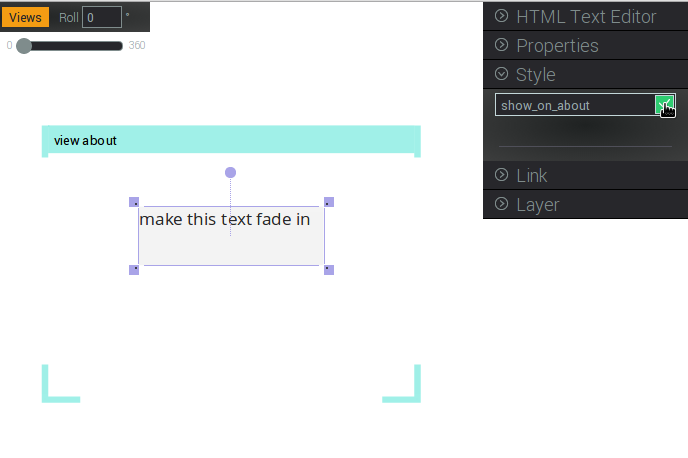
In the screenshot I want to make a text fade in when the view about is called. You can see the view about as turquoise rectangle (actually only header and bottom corners have a color). The text "make this text fade in" ist sected and on the right menu the section Style is open. To create a new style class just type in the name of the class. I typed "show_on_about" to make it fade in when a user navigates to the about view. After applying the style will look like this:

No need to fill in anything. If you have Thomas code in the JS section of the hacker shell, the text should now fade in.
Message has been deleted

Denis Kushnir
Aug 13, 2014, 5:45:47 AM8/13/14
to web...@googlegroups.com
Hi, when I tried this tutorial and it didn't work until Falco told me to do 2 things.
1. After applying the code to the "js" tab, I had to press the "save" button, otherwise after refreshing the page the code disappeared

2. I had to type inside the style window "display: none;" in order to make the object actually disappear and appear only in the specific view


Dana Lee
Nov 18, 2014, 12:09:37 PM11/18/14
to web...@googlegroups.com
I don't understand which object I have to change in the code Thomas wrote.
If the object that I want to make it appear when a view changes, its number is #obj55555, then where should I change ? Also the view?
I mean it's nice to have code, but I don't know what to adjust..
Falko
Nov 22, 2014, 10:51:06 AM11/22/14
to web...@googlegroups.com
The nice thing about the code is that you do not have to adjust it. The only thing you have to do to make it work is
- select the element(s) you want to appear when your user navigates to e.g. viewport "about"
- open up the styles section in the right menu
- type in "only_on_about" and press enter
when you now leave the viewport about the element fades out, and when you go to the viewport about the element fades in
Reply all
Reply to author
Forward
0 new messages