
[The Computer Kid] How To Manually Edit Gnome Menus
4 views
Skip to first unread message

Conrad Sykes
Aug 17, 2013, 2:04:57 AM8/17/13
to the-comp...@googlegroups.com
In this post we will be editing Gnome menus and menu items in Debian. When I say "menu" I mean the list of application categories (such as... Accessories, Graphics, Internet, Office), and when I say "menu item" I mean a specific application link in our menu (such as... Terminal, Wireshark, LibreOffice, etc).
To edit a gnome menu open your terminal and navigate to ~/.config/menus/ and edit the applications.menu file as sudo. Now you should see all of the different application groups. For this demo I will go ahead and create our own category called "My Category", by entering the following code...
 The two important tags from the above code to remember are the <directory> Tag and <category> Tag.The directory tag defines the name displayed in the gnome menu (note: the .directory at the end is not displayed), and the category tag defines how we will reference the menu we are creating when we add specific menu items.
Once you have added the above code, save the file and exit. If you open your gnome menu you won't see the category we created but don't worry this is to be expected because gnome only shows menu categories that have applications in them and since we haven't defined any applications to go into our menu category it won't be displayed yet.
Now it's time to create a menu item. Navigate to /usr/share/applications. Inside this folder you will see a long list of ".desktop" files which are all your menu items already created. You can either edit an existing ".desktop" file or for this demo I will show you how to create a new one. Specifically, I will be creating a menu item for Eclipse (but you can change out the options for any program you'd like).
Create a new file called eclipse.desktop and then enter the following lines of code.
 Type specifies that this is an application we are referring to. Exec is the path of the application we are running. Name is the title of menu item we are creating. Icon is the path to the icon we want displayed for our menu item. Categories specify under which menu category we want our menu item to be stored. These are the basic options we need for our menu item, but if you'd like a more in depth look at all the options available I recommend checking out http://linuxcritic.wordpress.com/2010/04/07/anatomy-of-a-desktop-file/
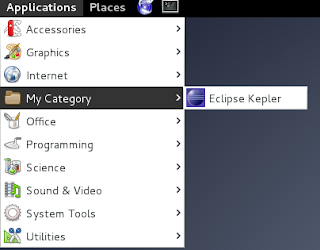
Once your .desktop file is saved you should see both the menu category we created earlier and the new menu item we just saved. If you have any questions feel free to leave a comment below.
--
Posted By Conrad Sykes to The Computer Kid at 8/16/2013 11:04:00 PM
To edit a gnome menu open your terminal and navigate to ~/.config/menus/ and edit the applications.menu file as sudo. Now you should see all of the different application groups. For this demo I will go ahead and create our own category called "My Category", by entering the following code...

Once you have added the above code, save the file and exit. If you open your gnome menu you won't see the category we created but don't worry this is to be expected because gnome only shows menu categories that have applications in them and since we haven't defined any applications to go into our menu category it won't be displayed yet.
Now it's time to create a menu item. Navigate to /usr/share/applications. Inside this folder you will see a long list of ".desktop" files which are all your menu items already created. You can either edit an existing ".desktop" file or for this demo I will show you how to create a new one. Specifically, I will be creating a menu item for Eclipse (but you can change out the options for any program you'd like).
Create a new file called eclipse.desktop and then enter the following lines of code.

Once your .desktop file is saved you should see both the menu category we created earlier and the new menu item we just saved. If you have any questions feel free to leave a comment below.

--
Posted By Conrad Sykes to The Computer Kid at 8/16/2013 11:04:00 PM
Reply all
Reply to author
Forward
0 new messages