
Re: Can Text Wrangler create an educated apostrophe?
285 views
Skip to first unread message

Steve
Sep 27, 2012, 10:09:50 AM9/27/12
to textwr...@googlegroups.com
Yes, you can use a "smart apostrophe" in TextWrangler. Just make sure the current document is set to some sort of unicode (the default UTF-8 should work fine).
The shortcut, by the way, is Option-Shift-] (right square bracket).
If you open System Preferences, then Language & Text (top section under PERSONAL), and then click the INPUT SOURCES tab at the top, you can see "Keyboard & Character Viewer" at the top.

Put a check in the box and a symbol appears in the top menu, by your clock. You may also need to put a check in for "Show Input menu in menu bar".

Then, if you click that icon in the menu bar, you'll see "Show/Hide Keyboard Viewer". That pulls up a virtual keyboard that hovers over all other windows that looks, by default, this:
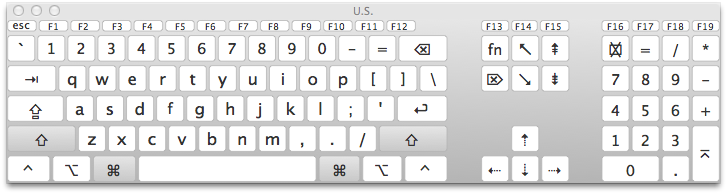
Each time you press a key, that key will be highlighted on this virtual keyboard. Hold down the OPTION key, and the entire selection changes so the square brackets show this:

The [ key turns in to the “ (opening smart quote) and the ] key turns into the ‘ (opening smart apostrophe). Holding Option+Shift gives you new options, so the [ key is now ” (closing smart quote) and ] is ’ (closing smart apostrophe).
You can also find all sorts of other characters that you can add into your TextWrangler documents from that virtual keyboard, such as the © symbol (Option G), (Option-Shift-K), and so on (some of these may not show up properly after being send by Gmail, so I apologize). And once you don't need that visual help anymore, you can disable that virtual keyboard.
Does this help?
-Steve
On Thursday, September 27, 2012 5:37:08 AM UTC-7, Paul2345 wrote:
On Thursday, September 27, 2012 5:37:08 AM UTC-7, Paul2345 wrote:
Hello! When I am entering text inside Text Wrangler, can I create an "educated apostrophe" ? How? Is there a shortcut, like APPLE + SHIFT + ' ??

Thomas Humiston
Sep 27, 2012, 5:45:34 PM9/27/12
to textwr...@googlegroups.com
Paul, the settings Steve suggested are for the operating system itself, not TextWrangler. Go to the Apple menu > System Preferences (and NOT TextWrangler > Preferences).
But that's just if you want to use the keyboard viewer, a handy tool for seeing which key combinations will produce what on your Mac. But you don't have to. The keyboard shortcuts are enough:
Option-[ and Shift-Option-[ for smart double-quotes
Option-] and Shift-Option-] for smart single-quotes
If you consider an apostrophe to be the same as a right single quote, then that last one, Shift-Option-], is your answer.
Tom
On Sep 27, 2012, at 3:44 PM, Paul2345 wrote:
> I am afraid I cannot locate any of the things you say.
>
> Perhaps because all I have is Text Wrangler 3.0 for mac ?
But that's just if you want to use the keyboard viewer, a handy tool for seeing which key combinations will produce what on your Mac. But you don't have to. The keyboard shortcuts are enough:
Option-[ and Shift-Option-[ for smart double-quotes
Option-] and Shift-Option-] for smart single-quotes
If you consider an apostrophe to be the same as a right single quote, then that last one, Shift-Option-], is your answer.
Tom
On Sep 27, 2012, at 3:44 PM, Paul2345 wrote:
> I am afraid I cannot locate any of the things you say.
>
> Perhaps because all I have is Text Wrangler 3.0 for mac ?
>
>
> On Sep 27, 2012, at 10:09 AM, Steve wrote:
>
>> Yes, you can use a "smart apostrophe" in TextWrangler. Just make sure the current document is set to some sort of unicode (the default UTF-8 should work fine).
>>
>> The shortcut, by the way, is Option-Shift-] (right square bracket).
>>
>> If you open System Preferences, then Language & Text (top section under PERSONAL), and then click the INPUT SOURCES tab at the top, you can see "Keyboard & Character Viewer" at the top.
>>
>> [img]
>
> On Sep 27, 2012, at 10:09 AM, Steve wrote:
>
>> Yes, you can use a "smart apostrophe" in TextWrangler. Just make sure the current document is set to some sort of unicode (the default UTF-8 should work fine).
>>
>> The shortcut, by the way, is Option-Shift-] (right square bracket).
>>
>> If you open System Preferences, then Language & Text (top section under PERSONAL), and then click the INPUT SOURCES tab at the top, you can see "Keyboard & Character Viewer" at the top.
>>
>>
>> Put a check in the box and a symbol appears in the top menu, by your clock. You may also need to put a check in for "Show Input menu in menu bar".
>>
>> [img]
>> Put a check in the box and a symbol appears in the top menu, by your clock. You may also need to put a check in for "Show Input menu in menu bar".
>>
>>
>> Then, if you click that icon in the menu bar, you'll see "Show/Hide Keyboard Viewer". That pulls up a virtual keyboard that hovers over all other windows that looks, by default, this:
>>
>> [img]
>> Then, if you click that icon in the menu bar, you'll see "Show/Hide Keyboard Viewer". That pulls up a virtual keyboard that hovers over all other windows that looks, by default, this:
>>
>>
>> Each time you press a key, that key will be highlighted on this virtual keyboard. Hold down the OPTION key, and the entire selection changes so the square brackets show this:
>>
>> [img]
>> Each time you press a key, that key will be highlighted on this virtual keyboard. Hold down the OPTION key, and the entire selection changes so the square brackets show this:
>>

Nestor E. Aguilera
Sep 27, 2012, 6:34:32 PM9/27/12
to textwr...@googlegroups.com
On 27 Sep 2012, at 18:45, Thomas Humiston wrote:
> Paul, the settings Steve suggested are for the operating system itself, not TextWrangler. Go to the Apple menu > System Preferences (and NOT TextWrangler > Preferences).
>
> But that's just if you want to use the keyboard viewer, a handy tool for seeing which key combinations will produce what on your Mac. But you don't have to. The keyboard shortcuts are enough:
>
> Option-[ and Shift-Option-[ for smart double-quotes
> Option-] and Shift-Option-] for smart single-quotes
>
> If you consider an apostrophe to be the same as a right single quote, then that last one, Shift-Option-], is your answer.
>
> Tom
Nestor

Thomas Fischer
Sep 28, 2012, 3:38:28 AM9/28/12
to textwr...@googlegroups.com
Hello,
I think it should be mentioned that TextWrangler can produce "educated" quotes automatically, they are called "Typographer's quotes".
This can be turned on either via its preferences in general (under "Editor Defaults") or on a per documents basis using the button in the document's tool bar.
And there is a menu entry Text -> "Educate Quotes" that will transform all quotes in your text accordingly.
By the way, the shortcut for curly quotes (“”) for me is option(-shift)-2 and (‘’) option(-shift)-# respectively, so it depends on the keyboard layout you're using as mentioned earlier.
Best
Thomas
> --
> You received this message because you are subscribed to the
> "TextWrangler Talk" discussion group on Google Groups.
> To post to this group, send email to textwr...@googlegroups.com
> To unsubscribe from this group, send email to
> textwrangler...@googlegroups.com
> For more options, visit this group at
> http://groups.google.com/group/textwrangler?hl=en
> If you have a feature request or would like to report a problem,
> please email "sup...@barebones.com" rather than posting to the group.
I think it should be mentioned that TextWrangler can produce "educated" quotes automatically, they are called "Typographer's quotes".
This can be turned on either via its preferences in general (under "Editor Defaults") or on a per documents basis using the button in the document's tool bar.
And there is a menu entry Text -> "Educate Quotes" that will transform all quotes in your text accordingly.
By the way, the shortcut for curly quotes (“”) for me is option(-shift)-2 and (‘’) option(-shift)-# respectively, so it depends on the keyboard layout you're using as mentioned earlier.
Best
Thomas
> You received this message because you are subscribed to the
> "TextWrangler Talk" discussion group on Google Groups.
> To post to this group, send email to textwr...@googlegroups.com
> To unsubscribe from this group, send email to
> textwrangler...@googlegroups.com
> For more options, visit this group at
> http://groups.google.com/group/textwrangler?hl=en
> If you have a feature request or would like to report a problem,
> please email "sup...@barebones.com" rather than posting to the group.
Reply all
Reply to author
Forward
0 new messages