
Text scroll for "Credits" shows solid white

Tim Reid

micpool

luckydave
micpool

micpool

Chet Miller
Tim Reid
--
Contact support anytime: sup...@figure53.com
Follow QLab on Twitter: https://twitter.com/QLabApp
User Group Code of Conduct: https://qlab.app/code-of-conduct/
---
You received this message because you are subscribed to the Google Groups "QLab" group.
To unsubscribe from this group and stop receiving emails from it, send an email to qlab+uns...@googlegroups.com.
To view this discussion on the web visit https://groups.google.com/d/msgid/qlab/81ede6a8-fff3-4aa8-89ea-4876c4246f75n%40googlegroups.com.
micpool
micpool
--initialise
set oldTIDs to AppleScript's text item delimiters
set theScaledWidths to {}
set theScaledHeights to {}
set cueListFlag to false
set onScreenFlag to false
tell application id "com.figure53.QLab.4" to tell front workspace
set thecues to (selected as list)
--check the selection contains is either all text , or all video cues, and is not empty.
if the (count of thecues) < 1 then
display dialog "No text or video Cues Selected!"
return
end if
if the q type of item 1 of thecues is "Text" then
set thecueType to "Text"
else
set thecueType to "Video"
end if
set theparent to parent of item 1 of thecues
repeat with thecue in thecues
if the q type of thecue is not in {"Video", "Text"} or (q type of thecue is not thecueType) then
display dialog "Selection contains cues that are not all text, or all video cues."
return
end if
if the parent of thecue is not theparent then
display dialog "Selection contains cues that are in a different groups or cue lists "
return
end if
end repeat
if the q type of theparent is "cue list" then set the cueListFlag to true
set theDirection to choose from list {"Left to Right", "Right to Left", "Top to Bottom", "Bottom to Top"} with prompt "IMAGE SCROLL BUILDER" & return & return & "Check that the " & (count of thecues) & " cues selected are video or text cues, ordered L to R, or top to bottom." & return & return & "Please check carefully that the cues selected are assigned to the same surface (This is not checked automatically!)" & return & return & "Select direction below to make a scrolling image or text sequence from the selected cues." & return & return & "Choose image start and end points l" default items {"Left to Right"} without multiple selections allowed
if theDirection is {"Left to Right"} then
set theXfactor to 1
set theYfactor to 0
set thereverse to 0
else if theDirection is {"Right to Left"} then
set theXfactor to -1
set theYfactor to 0
set thereverse to 1
else if theDirection is {"Top to Bottom"} then
set theXfactor to 0
set theYfactor to -1
set thereverse to 0
else if theDirection is {"Bottom to Top"} then
set theXfactor to 0
set theYfactor to 1
set thereverse to 1
else
return
end if
set thebutton to button returned of (display dialog "Choose if Start and End points of scroll are on or off screen" buttons {"ON", "OFF", "Cancel"} default button 1)
if thebutton is "Cancel" then return
if thebutton is "ON" then set onScreenFlag to true
if thereverse is 1 then set thecues to reverse of thecues --R to L, or Down motion directions
repeat with thecue in thecues
--store the cue number and temporarily change it for use in the OSC query
set theoldcuenumber to q number of thecue
set the q number of thecue to "tempx"
--pad the line if horizontal text
if q type of thecue is "Text" and theXfactor is not 0 then
set the text of thecue to (text of thecue & "\\")
end if
--to make OSC queries work correctly, create a network cue that will be deleted after use
make type "network"
set theselected to last item of (selected as list)
set the q number of theselected to "ERASEME"
--get the surface size for the surface the cue is patched to
set the custom message of theselected to "/cue/ERASEME/notes \"#/cue/tempx/surfaceSize#\""
set the selected to thecue
start cue "ERASEME"
set AppleScript's text item delimiters to {";", " height = ", "width = "}
set thenotes to notes of cue "ERASEME"
set theScreenWidth to text item 4 of thenotes as string
set theScreenHeight to text item 2 of thenotes as string
--get the image size for the file the cue targets or the size of the text image
set the custom message of theselected to "/cue/ERASEME/notes \"#/cue/tempx/cueSize#\""
set the selected to thecue
start cue "ERASEME"
set thenotes to notes of cue "ERASEME"
set theImagewidth to text item 4 of thenotes as string
set theImageheight to text item 2 of thenotes as string
--set the scaling to fit the images or text on screen.
if theXfactor is not 0 then
set thescale to theScreenHeight / theImageheight
else
set thescale to theScreenWidth / theImagewidth
end if
set thescaledW to theImagewidth * thescale
set thescaledH to theImageheight * thescale
--erase text padding after gap between text cues has been calculated
if thecueType is "Text" and theXfactor is not 0 then
set thetext to text of thecue as string
set thetids to AppleScript's text item delimiters
set AppleScript's text item delimiters to "\\"
set the text of thecue to text item 1 of thetext
set AppleScript's text item delimiters to thetids
end if
--clean up
set q number of thecue to theoldcuenumber
delete cue "ERASEME" of parent of cue "ERASEME"
--set video properties for the cue
set the full screen of thecue to false
set scale x of thecue to thescale
set scale y of thecue to thescale
set end of theScaledWidths to thescaledW
set end of theScaledHeights to thescaledH
end repeat
--initialise accumulators fro running image width and height to enable image offsets to be calculated
set the widthAccumulator to 0
set the heightAccumulator to 0
--set the translations for each cue
repeat with eachcue from 1 to the count of thecues
set scaledImageWidth to item eachcue of theScaledWidths
set scaledImageHeight to item eachcue of theScaledHeights
set thisCue to item eachcue of thecues
-- if the cues are text cues then start and end the scroll off screen
if onScreenFlag is true then
set the translation x of thisCue to (widthAccumulator - (theScreenWidth / 2 - scaledImageWidth / 2)) * theXfactor
set the translation y of thisCue to (heightAccumulator - (theScreenHeight / 2 - scaledImageHeight / 2)) * theYfactor
else
set the translation x of thisCue to ((widthAccumulator - (theScreenWidth / 2 - scaledImageWidth / 2)) * theXfactor) + (theScreenWidth * theXfactor)
set the translation y of thisCue to ((heightAccumulator - (theScreenHeight / 2 - scaledImageHeight / 2)) * theYfactor) + (theScreenHeight * theYfactor)
end if
set widthAccumulator to widthAccumulator + scaledImageWidth
set heightAccumulator to heightAccumulator + scaledImageHeight
end repeat
--make a relative fade cue to move all the images together and set its duration to a suitable value to test it
make type "fade"
set thefadecue to last item of (selected as list)
set the do translation of thefadecue to true
if onScreenFlag is true then
set the translation x of thefadecue to -(widthAccumulator - theScreenWidth) * theXfactor
set the translation y of thefadecue to -(heightAccumulator - theScreenHeight) * theYfactor
else
set the translation x of thefadecue to -((widthAccumulator - theScreenWidth) * theXfactor) - (theScreenWidth * theXfactor * 2)
set the translation y of thefadecue to -((heightAccumulator - theScreenHeight) * theYfactor) - (theScreenHeight * theYfactor * 2)
set stop target when done of thefadecue to true
end if
if widthAccumulator is greater than heightAccumulator then
set the duration of thefadecue to widthAccumulator / 500
else
set the duration of thefadecue to heightAccumulator / 500
end if
--make a timeline group ad move all the cues all the cues into it
make type "group"
set thegroupcue to last item of (selected as list)
set the autoload of thegroupcue to true
set the mode of thegroupcue to timeline
set the q number of thegroupcue to ""
set the q name of thegroupcue to "Scroll Image Group: " & q list name of item 1 of thecues
set the cue target of thefadecue to thegroupcue
repeat with eachcue in thecues
move cue id (uniqueID of eachcue) of parent of eachcue to end of thegroupcue
end repeat
move cue id (uniqueID of thefadecue) of parent of thefadecue to end of thegroupcue
-- if end of cue leaves image on screen create a fade cue to fade and stop it
if onScreenFlag is true then
set the selected to thegroupcue
make type "fade"
set thefadecue to last item of (selected as list)
set the do opacity of thefadecue to true
set the opacity of thefadecue to 0
set the stop target when done of thefadecue to true
set the cue target of thefadecue to thegroupcue
end if
delay 1
--start the cue to test it
load thegroupcue
delay 1
start thegroupcue
end tell
--clean up
set AppleScript's text item delimiters to oldTIDs
micpool

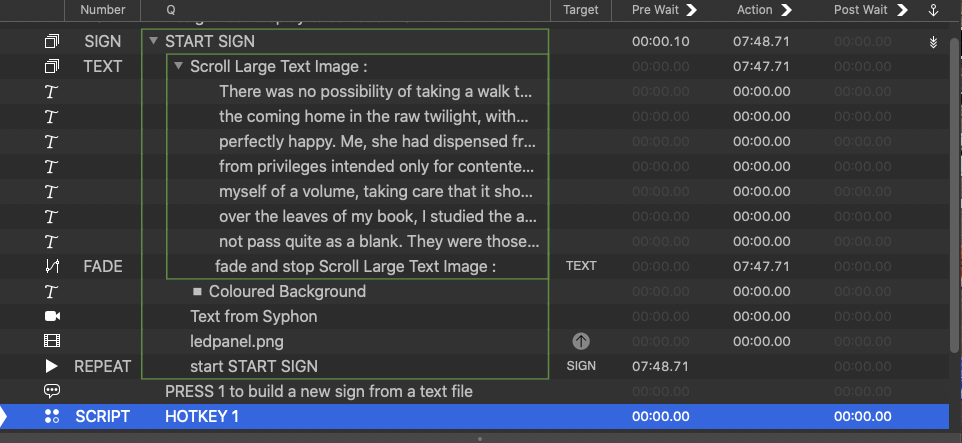
The script first splits the text files into cues that are within the pixel width allowed for the texture map for each cue by adding a word at a time to the text cue until the reported text output size width of the cue exceeds 150000, when it will make a new cue and continue.
It then calculates the offsets for these cues and groups them with a fade cue that will apply a relative fade to all cues to move them across the surface.
(Workspace attached. It should play something on most systems just by changing the display on the triggers surface to your output display, Although the geometry might not match the screenshot above if you use a different size monitor.)
-- Script to convert a text file to multiple QLab text cues within permitted pixel dimensions of a texture.
--set up text format in settings/cue templates/text
--initialise
set oldTIDs to AppleScript's text item delimiters
set AppleScript's text item delimiters to {" ", (ASCII character 10), (ASCII character 8)}
set theScaledWidths to {}
set onScreenFlag to false
--convert text file to cues
set thePixels to 15000
tell application id "com.figure53.QLab.4" to tell front workspace
stop cue "SIGN"
set the selected to cue "SCRIPT"
set theFile to choose file of type "txt" with prompt "Convert a text file to multiple QLab text cues, within permitted pixel dimensions of texture map. " & return & return & "Select a text file:"
set theFileContents to read theFile
set theCueIndex to 1
make type "text"
set thetextcue to last item of (selected as list)
set the q number of thetextcue to "Temp" & theCueIndex
set the text of thetextcue to ""
set thelinelength to 0
repeat with theword from 1 to count of text items of theFileContents
set the text of thetextcue to text of thetextcue & " " & text item theword of theFileContents
set thelinelength to item 1 of (text output size of thetextcue as list) as integer
if thelinelength is greater than thePixels then
make type "text"
set thetextcue to last item of (selected as list)
set theCueIndex to theCueIndex + 1
set q number of thetextcue to "temp " & theCueIndex
set the text of thetextcue to ""
set linelength to 0
set text of thetextcue to ""
end if
end repeat
end tell
tell application id "com.figure53.QLab.4" to tell front workspace
try
delete cue "TEXT" of parent of cue "TEXT"
end try
set thecues to cues of front cue list whose q number begins with "Temp"
repeat with thecue in thecues
--store the cue number and temporarily change it for use in the OSC query
set theoldcuenumber to q number of thecue
set the q number of thecue to "tempx"
set the text of thecue to (text of thecue & "\\")
--to make OSC queries work correctly, create a network cue that will be deleted after use
make type "network"
set theselected to last item of (selected as list)
set the q number of theselected to "ERASEME"
--get the surface size for the surface the cue is patched to
set the custom message of theselected to "/cue/ERASEME/notes \"#/cue/tempx/surfaceSize#\""
set the selected to thecue
start cue "ERASEME"
set AppleScript's text item delimiters to {";", " height = ", "width = "}
set thenotes to notes of cue "ERASEME"
set theScreenWidth to text item 4 of thenotes as string
set theScreenHeight to text item 2 of thenotes as string
--get the image size for the file the cue targets or the size of the text image
set the custom message of theselected to "/cue/ERASEME/notes \"#/cue/tempx/cueSize#\""
set the selected to thecue
start cue "ERASEME"
set thenotes to notes of cue "ERASEME"
set theImagewidth to text item 4 of thenotes as string
set theImageheight to text item 2 of thenotes as string
--set the scaling to fit the images or text on screen.
set thescale to (theScreenHeight / theImageheight)
set thescaledW to theImagewidth * thescale
set thescaledH to theImageheight * thescale
--erase text padding after gap between text cues has been calculated
set thetext to text of thecue as string
set thetids to AppleScript's text item delimiters
set AppleScript's text item delimiters to "\\"
set the text of thecue to text item 1 of thetext
set AppleScript's text item delimiters to thetids
--clean up
set q number of thecue to theoldcuenumber
delete cue "ERASEME" of parent of cue "ERASEME"
--set video properties for the cue
set the full screen of thecue to false
set scale x of thecue to thescale
set scale y of thecue to thescale
set end of theScaledWidths to thescaledW
end repeat
--initialise accumulators fro running image width and height to enable image offsets to be calculated
set the widthAccumulator to 0
--set the translations for each cue
repeat with eachcue from 1 to the count of thecues
set scaledImageWidth to item eachcue of theScaledWidths
set thisCue to item eachcue of thecues
set the translation x of thisCue to ((widthAccumulator - (theScreenWidth / 2 - scaledImageWidth / 2))) + (theScreenWidth)
set widthAccumulator to widthAccumulator + scaledImageWidth
end repeat
--make a relative fade cue to move all the images together and set its duration to a suitable value to test it
make type "fade"
set thefadecue to last item of (selected as list)
set the do translation of thefadecue to true
set the q number of thefadecue to "FADE"
set the translation x of thefadecue to -((widthAccumulator - theScreenWidth)) - (theScreenWidth * 2)
set stop target when done of thefadecue to true
set the duration of thefadecue to (translation x of thefadecue) / -250
--make a timeline group ad move all the cues all the cues into it
make type "group"
set thegroupcue to last item of (selected as list)
set the autoload of thegroupcue to true
set the mode of thegroupcue to timeline
set the q number of thegroupcue to "TEXT"
set the q name of thegroupcue to "Scroll Large Text Image : "
set the cue target of thefadecue to thegroupcue
repeat with eachcue in thecues
move cue id (uniqueID of eachcue) of parent of eachcue to end of thegroupcue
set q number of eachcue to ""
end repeat
move cue id (uniqueID of thefadecue) of parent of thefadecue to end of thegroupcue
move cue id (uniqueID of cue "TEXT") of parent of cue "TEXT" to beginning of cue "SIGN"
set the pre wait of cue "REPEAT" to (duration of cue "FADE") + 1
delay 1
--start the cue to test it
load (first cue whose q number is "SIGN")
delay 1
start cue "SIGN"
end tell
--clean up
set AppleScript's text item delimiters to oldTIDs
Mic
Tim Reid
On 19 Mar 2021, at 18:36, micpool <m...@micpool.com> wrote:
For those still interested in long scrolling text cues, here are the final few bits of the jigsawThis workspace will emulate a ticker sign on the corner of a building.
<Screenshot 2021-03-19 at 18.22.31.png>It outputs the text to a syphon surface which the camera cue uses as its input to play it behind the led panel png which is just a solid black rectangle with a lot of square alpha holes in it.To make the text look more like it is filling each pixel of the screen the camera cue has a pixellate video filter applied to square off the edges of the text. In practice, because the text is moving you can set a lower value which makes the text look better close on screen as opposed to viewed 20 metres away.That way the camera pixels and the led grid stay stationary as a lens, to the the text moving behind it.These cues are output to a surface which has a simple perspective screen split to simulate a 90 degree bend at the corner of the building
--
Contact support anytime: sup...@figure53.com
Follow QLab on Twitter: https://twitter.com/QLabApp
User Group Code of Conduct: https://qlab.app/code-of-conduct/
---
You received this message because you are subscribed to the Google Groups "QLab" group.
To unsubscribe from this group and stop receiving emails from it, send an email to qlab+uns...@googlegroups.com.
To view this discussion on the web visit https://groups.google.com/d/msgid/qlab/193e7473-ab95-4f94-99e8-3775513d6164n%40googlegroups.com.
<Screenshot 2021-03-19 at 18.09.29.png><Tickers.zip><Screenshot 2021-03-19 at 18.22.31.png>