Converting a DGT Pi into a Pi 4B – my build as a complete novice!

Dan
Hi,
I’m new to Picochess, the Raspberry Pi and Linux, and am extremely interested in the project.
My end goal is to build a chess computer that I find attractive that I can use to a) play against the AI Maia and b) use with the latest Stockfish NNUE to analyse and explore positions.
Information about Picochess, the DGT Pi and the Raspberry 4b conversion is split up across many threads and seems to be mostly aimed at experts who are already familiar with the Picochess ecosystem and Linux. I feel like it would be well worth it to document my own experience as a complete novice for the benefit of any other new person unfamiliar with Picochess to save an enormous amount of searching and trying to decipher and take onboard a very large amount of information.
To begin, I purchased a DGT Pi, a Raspberry Pi 4b and a DGT 3000 Limited Edition. I did not purchase a DGT e-board or pieces until I was confident that I first have the chess computer as I would want it.
I have never been fond of the red/white look of the DGT 3000, and while the DGT 3000 LE is similarly plastic, it is more attractive to me. To swap the case upper of the DGT Pi with the DGT 3000 LE, I did the following:
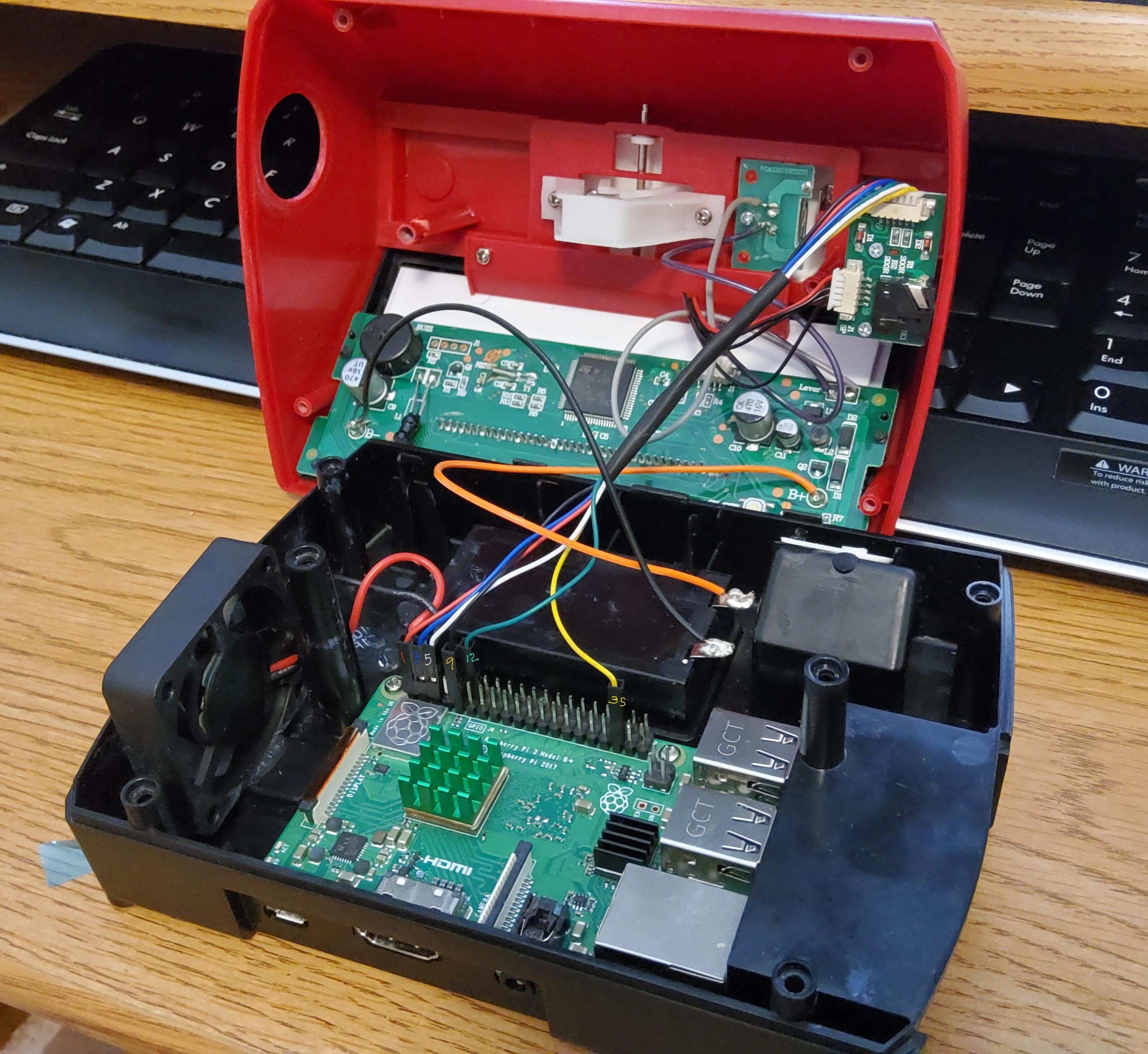
To open the DGT Pi & DGT 3000, there are 6 small silver Philips screws holding the base plate to the case. For the DGT 3000, there are just 2 wires (1 red, 1 black) going from the case upper to the battery terminals of the base plate. For the DGT Pi, there is also a pair of cables (1 with 5 red & black wires, 1 with 6 multicoloured wires) that connect to the small PCB with the 3.5mm TRRS jack on the side of the upper case. The 6 multicoloured wire cable does not need to be unplugged from either end (yet). Detach the battery terminal wire pairs for the DGT Pi and the donor DGT3000 LE using a soldering iron quickly. Unscrew the small PCB around the 3.5mm TRRS jack from the DGT Pi and unplug from it the 5 wire (1 red 4 black wire) cable leading to the LCD. Transfer that small PCB into the DGT 3000 LE upper, reattach the cable and solder back the battery terminal wires. The two case parts clip together at the front of the unit.
Now, I had a DGT Pi with a DGT 3000 LE top, with the stock Raspberry Pi 3b inside. I began to install Picochess. To do so, I downloaded 4 things (on my Windows PC): SD Memory Card Formatter, Win32DiskImager, Notepad++ Portable, and the latest images of Picochess as compiled by RandyR in the thread on here titled “PicoChess v3 Desktop and Lite Images”, dated April 22nd, 2022.
The difference between the Desktop & the Lite image is that the Desktop has a full Desktop GUI if you attach a monitor, keyboard & mouse to the Raspberry Pi at the base of the DGT Pi. For testing purposes, I chose to run the Desktop image to be able to see what was going on. There is no information I can see on here if running the Desktop image has any significant overhead or performance cost, but for the time being I will not worry about it.
I used the official SD Memory Card Formatter to ensure that my microsd card was clean, and used Win32DiskImager to write RandyR’s image to the clean microsd card. If you are using Wifi, I would highly recommend that you now open Notepad++ and set the EOL to “UNIX LF”. Create a file called wpa_supplicant.conf with the content:
ctrl_interface=DIR=/var/run/wpa_supplicant GROUP=netdev
update_config=1
country=<2LETTERCOUNTRYCODE>
network={
ssid="<WIFINAME>"
psk="<WIFIPASSWORD>"
# scan_ssid=1
}
Enter your own details, and remove the # comment mark if your wifi SSID is hidden. This file can be then copied to the /boot folder of the SD card after RandyR’s image has been burnt, and will allow the Pi to connect to Wifi from the beginning.
My first attempt at this failed miserably, as I did not realise that the Pi 3b did not support 5Ghz Wifi and did not play nicely with hidden wifi SSIDs. I ended up with any number of “No wireless interfaces found” and "Failed to initiate sched scan" errors.
If you did not set up a Wifi connection in advance, Wifi settings are stored in /etc/wpa_supplicant/wpa_supplicant.conf . To edit this, you need to open a command prompt terminal and use sudo to have permissions to edit it. The text editor in RandyR’s image is Geany, so: sudo geany /etc/wpa_supplicant/wpa_supplicant.conf
Other terminal commands that may be helpful are:
sudo ifconfig wlan0 up This will set the Wifi interface active
sudo iwlist wlan0 scan | grep ESSID shows the Wifi networks that it can connect to.
iwconfig shows the network adapter state.
Once connected to the internet, you can update the Pi via the option to install the system updates which will appear on the taskbar in the top right. You can also update the raspi-config tool, which can be accessed with sudo raspi-config at the command prompt.
I had now a running version of Picochess 3 on the DGT Pi unit, connected to the internet. I do not know yet how to interact with the chess aspect of the software directly from the Pi Desktop GUI, without using the PicochessWeb interface. You can use iwconfig to see the Pi’s assigned IP address, and from the Pi’s internet browser or from another computer on the same LAN visit that IP address to see a display of a chessboard and the position evaluation of the chosen engine.
The Picochess files are stored in /opt/picochess, but frankly the sheer volume of files and possible configuration options was enough for me to leave that untouched before I created a problem.
Now, I progressed to the Raspberry Pi 4b swap. The Pi 3B, 3B+ and 4B all share the same 4 mounting holes and basic dimensions. However, the 4B has a different set of output ports. It lacks the standard HDMI port, and the RJ45 LAN socket is swapped with the USB sockets (and these protrude over the edge of the board). The net result is that physically the 4B will not fit in the DGT Pi base without modification.
I note that in this forum there are at least 2 alternative versions of the DGT Pi base available for 3D printing for those who have access to a 3D printer which may fit a Pi 4B without modification. I do not have such access. To modify the DGT Pi base for the Raspberry Pi 4B, the plastic struts between the USB & RJ45 ports as well as a little of the side by the USB 2.0 ports must be removed, and the hole for the HDMI port must be enlarged to cover the new display ports. This can be done with things like a pair of small cutting pliers, a Dremel/die grinder with a burr attachment, or a file. The first part of this modification is relatively unobtrusive, the second part is rather more noticeable if you ever look at the rear of the unit. It may be possible to tidy this second rear hole up with a product like Sugru, but I do not think it would be a good idea, for reasons I will explain shortly. I note that the left hand bank of USB2.0 ports will remain partially obstructed, and if you wished to plug in 3 bulkier USB plugs (e.g. for board, keyboard and mouse) either a fair amount more plastic would have to be removed, or a USB hub employed.
Now that the Pi 4B is screwed to the base of the DGT Pi, the 6 pin wire that goes from the small PCB with the 3.5mm TRS jack can be attached to the Pi 4B. To do this, search for an image of “Raspberry Pi GPIO” which will give you the pin numbers of the wire connector header. The board is orientated so that Pin #2 is the furthest away from the USB ports.
On the Pi 3B, the wires connected as follows: Red – Pin #1 (left bank), Blue – Pin #3 (left bank), White – Pin #5 (left bank), Black – Pin #9 (left bank), Green – Pin #12 (right bank), Yellow – Pin #25 (left bank).
On the Pi 4B, the wires connected as follows: Red – Pin #1 (left bank), Blue – Pin #3 (left bank), White – Pin #5 (left bank), Black – Pin #9 (left bank), Green – Pin #19 (left bank), Yellow – Pin #23 (left bank).
Note that the pins for the Green & Yellow wires have moved, and that the Pi 4B requires a USB-C power supply and micro HDMI cable (if you wish to use the desktop without remote VNC).
The same SD card that was used with the Pi 3B with RandyR’s Picochess 3 image from April 22 2022 can be plugged into the Pi 4B, and the unit can be powered on and work as before without any alteration. I now have a DGT Pi with a Pi 4B inside, running Picochess V3 and with a DGT 3000 LE top.
Before sealing up the unit for good, some thought should be given to cooling. The Pi 3B runs warm, and the 4B can run hot. Cooling will help its performance, as both Pi units will reduce their performance if they heat up excessively. If you are uninterested in swapping the Pi out of the DGT Pi, stick-on heatsinks are available for the Pi 3B that would help it run cooler. For the 4B, large aluminium heatsinks with optional fans are available cheaply, and these will fit the DGT Pi base without interference. Given that the DGT Pi base has no natural airholes, the hole created from the HDMI port may actually be an advantage, if unsightly. If you are using a heatsink with a fan, the power wires for a 5V fan connect to Pin #4 and Pin #6, and there will be some noise but the noise is fairly minimal. If you wish to see the temperature of the unit, you can add the temperature to the taskbar at the top right. Right click on the area, select “Add / Remove Panel items”, “Add” and select “Temperature Monitor”.
At this point, the main hardware work on the Pi was complete. I purchased a DGT Bluetooth e-Board and a set of pieces, and tried it out. The board connected perfectly and without issue via both micro USB and Bluetooth. I have read much discussion about Bluetooth issues on this forum, but none occurred for me thankfully and both forms of connection work with no delay or stability issues.
To turn the board on, press the button on the side near the USB micro port. If the light is flashing, it means that there is no communication with the PC/DGT Pi. If the colour is red there is a problem, else orange means the board’s internal battery is charging and green means the battery is fully charged. Pushing and holding the button for 10s will clear the board’s internal memory if necessary.
The playing experience is broadly similar to playing on a regular board, however there is no need to touch the chess clock lever after each move. To adjust the settings of Picochess, press the Right arrow on the DGT Pi to enter the menu, +- to scroll through options, then Right arrow to select an option.
In particular, the most important options (for me) are “Engine” and “Position”. “Engine” allows me to change between Maia to play against and Stockfish NNUE to analyse a position. “Position - Scan Board” allows me to set up a position to explore on the board, and play it. This, for me, is much quicker to do with a board than on a computer-based chess engine client. To take back moves while exploring a position, no interface interaction is necessary and you can simply move the pieces back as needed.
The short 3.5mm TRRS chess clock cable included with the board was the source of considerable confusion for me. After a fair amount of experimentation and re-reading, I found out that it is used only in the scenario that the board is being remotely controlled via USB/Bluetooth from a PC/DGT Pi, and a second local display is required. The short cable can then be connected from the board to the 3.5mm TRRS jack on the upper left hand side of a DGT clock like the DGT3000, and in mode 25 it will act as a display. This jack is not an audio port, and attaching headphones to it will simply cause the display to freeze. There is an actual audio output of the DGT Pi: the 3.5mm TRS jack on the Pi itself at the bottom by the power cable. To this, a speaker/headphones can be connected if you want the DGT Pi to announce moves, and the “System” – “Voices” settings allow you to set the voices used by the DGT Pi to announce both or either it’s own moves and your moves if you wish.
The PicochessWeb interface is accessible from the DGT Pi itself or any other device on the same local network, by visiting the DGT Pi’s IP in a web browser. In the web interface, you can see where the DGT board thinks the pieces are, hear moves announced, see engine analysis of the position and also download a PGN file recording of the game’s moves. You can make moves on the web interface, however this appears to be only for the PicochessWeb engine analysis and is not reflected on the DGT Pi & board state?
There are some quirks with the PicochessWeb interface. I tried it with 4 browsers: Chrome, Edge, Firefox (all on Windows) and Safari on iOS.
On Chrome, there was no “Hello. Welcome to Picochess” welcoming voice message, and the Engine – Analyze button is blocked (with the cursor turning into a no symbol) and doesn’t work, except rarely sometimes (randomly?!) after refreshing the page repeatedly (I have no extensions enabled that could interfere). On Edge and Firefox, there is a welcoming voice message and the Engine – Analyze works.
All three browsers on Windows have completely different voices to announce moves, with Firefox the most robotic sounding, Edge sounding very human but also very much like a child and Chrome relatively neutral. On Safari on iOS, there are no voices at all, but the Analyze button does work. On all 4 browsers however, the section marked “Book” is stuck on “Processing…” and does not appear to work.
The PicochessWeb Engine analysis is NOT run on the DGT Pi, and instead calculated locally on whatever device used to access the interface (visible from Task Manager). It’s unclear to me what engine is being used to calculate this analysis, or how many cores of the browsing device it is able to use (2?! even if many more cores are available??).
I do not know how to alter the voices used within the browsers (in particular, setting to use an adult’s voice), nor do I know how to turn off the “User Voice” portion {and retain the “Pico Voice” AI move announcement) of the PicochessWeb interface, nor do I know how to fix the Analyze button not working reliably within Chrome on Windows. I do not know how to fix the “Processing…” problem of the “Book” section.
5 questions emerge, which I am not entirely clear about:
1) Are there any configuration options specific to this setup (DGT Pi + Pi 4B 8GB) that would help maximise Picochess’s performance? If so, how/where would I set them, and to what setting? I have seen a lot of comments about adjusting core clocks, but it is very unclear to me if any of those comments are relevant to the Pi 4B when used in a DGT Pi, or how I would adjust for the available RAM. When using the Desktop interface, it does appear to be quite sluggish (I have not changed any setting in /boot/config.txt or /opt/picochess/picochess.ini).
2) How do I adjust the voices used by browsers for PicochessWeb? In particular, is it possible to get Edge to use a more adult voice? How can I alter the voice so that PicochessWeb does not announce the User Moves and only announces the AI moves (turning System-Voices-UserVoice off does not work)?
3) For PicoChessWeb, is there a trick to fixing the Analyze button to work every time with Chrome? What engine is used for PicochessWeb analysis as executed in local browsers? How do I fix the “Processing…” of the Book section?
4) Is there any particularly recommended speaker to connect to the DGT Pi, or is any small speaker that can plug to a 3.5mm TRS jack acceptable?
5) Is there a way to interact with the Picochess environment from the Raspberry Pi desktop apart from PicochessWeb?
Many thanks to RandyR, Scally, Lucas van der Ploeg and countless others for creating the Picochess software, and for posting their thoughts and work on this forum over the years, as well as the videos on YouTube. I hope that this guide is helpful to someone else considering putting together their own chess computer!

Scally
Hi Dan,
# Run as fast as firmware / board allows
arm_boost=1
core_freq=500
core_freq_min=500
# Added by Scally
over_voltage=6
arm_freq=1800
gpu_frequency=750
Scally


Scally


Mark HL
Sent: Sunday, July 24, 2022 4:52:28 AM
To: PicoChess <pico...@googlegroups.com>
Subject: Re: Converting a DGT Pi into a Pi 4B – my build as a complete novice!

You received this message because you are subscribed to the Google Groups "PicoChess" group.
To unsubscribe from this group and stop receiving emails from it, send an email to picochess+...@googlegroups.com.
To view this discussion on the web visit https://groups.google.com/d/msgid/picochess/fd57426c-b27d-427b-a7ca-1cdb0647aa84n%40googlegroups.com.
Dan
Hi Scally,
Thank you for your reply, and for your help to this whole community.
I have seen your DGT Pi before, it was one of the biggest inspirations that set me off on this project. Thank you for sharing pictures of it here, it would be deeply helpful for another novice. There’s just so very much information to take in at once as a newcomer, and collating it into one place was my aim!
Your DGT Pi has a lot more cooling than mine has! Mine has a “ZP-0042” made by “52Pi” on it, and I didn’t make any holes in the upper shell (yet).
Regarding my questions from before:
1) Re. the performance, I’ve just spent quite a bit of time researching config.txt and I think I understand quite a lot more.
The slightly confusing aspect was that RandyR’s image comes with the following clock-related settings written in config.txt:
#uncomment to overlock the arm. 700mhz is the default.
#arm_freq=800
# For Picochess on the DGTPi (overridden by the [pi4] section below when using the RPi4b wired to the DGT3000)
core_freq=250
core_freq_min=250
[all]
[pi4]
# Run as fast as firmware / board allows
arm_boost=1
core_freq=500
core_freq_min=500
[all]
Looking at the Raspberry Pi config.txt manufacturer’s documentation tables in detail, and if I understand this correctly, it seems to say that “arm_freq” controls the CPU core speed, “core_freq” controls the GPU core speed, and “gpu_freq” controls all the GPU related clock speeds together.
For a Raspberry Pi 4B revision 1.5 like mine, the standard performance according to the documentation should be 1800 for the arm_freq CPU core clock (with arm_boost =1 set) and 500 for all the GPU related clock speeds. This can be exceeded beyond manufacturer’s recommendation, as you describe, as an “overclock” but will require cooling.
The current arm_freq is visible through the terminal command “vcgencmd measure_clock arm” (read as divided by 1,000,000) and the configured clocks are visible through “vcgencmd get_config int”. Looking at the result of running this using RandyR’s image straight without modification, the arm_freq is already set to 1800 and the core_freq to 500 as per the manufacturer’s spec, so the Pi4B was already running at it’s correct speed! I may look to overclock later myself once I am more familiar with everything.
Two further questions:
1 A) Does GPU clock speeds (core_freq gpu_freq) actually alter Picochess performance, or is Picochess & chess engine running on CPU only?
1 B) Using the command “free -h” I note that that the majority of my Pi 4B’s 8GB of RAM is unused. Are there any settings which would instruct Picochess to make more use of the available memory?
2 & 3) Re the voices & engine of Picochess, it has taken me most of the afternoon to investigate this, but I believe I’ve found something interesting. There’s only 3 real references to the functionality that I can find on here after a lot of searching:
Dirk’s comment on Picochess v3 here that he created it:
25. Synthesized voice support for moves in WebServer (unfortunately works only in desktop browsers and in Android Firefox browser): Big thanks to Martin (author of the ingenious TuroChamp python engine) and deletion of the non working remote room button functionality.
A comment from 2021 here: “understand this is TTS and requires the browser to support the Web Speech API”
And a comment from Tom Emmelot here.
The discussion is correct – the PicochessWeb voices are powered from the “Web Speech API” supported by many browsers, and the relevant code that powers this is located at “/opt/picochess/web/picoweb/static/js/app.js”.
The key line of code that controls this is the “if (voices[i].lang == "en-US") {“ which looks for the first voice on your system with the language set, in this case “en-US” as set by Dirk.
To find what voices are present on your browser, I found this link to test the speech synthesis voices available (unique to each browser) https://embed.plnkr.co/WjmlDnxcXX5dqlQI/
For example, I found that in Microsoft Edge, the child’s voice that I found very human was “Microsoft Ana”, and this is only available in Edge. After some experimentation, I think that:
For Chrome, the best en-GB voice would be Google UK English Female
For Edge, the best en-GB voice would be Microsoft Libby
For Firefox, the best en-GB voice would be Microsoft Hazel Desktop
For Safari iOS, the best voice would be Moira, and Web Speech does actually work!
I then replaced the following section (via the terminal command sudo Geany)
for (i = 0; i < voices.length; i++) {
if (voices[i].lang == "en-US") {
myvoice = voices[i];
break;
}
}
With:
for (i = 0; i < voices.length; i++) {
if (voices[i].name == "Google UK English Female") {
myvoice = voices[i];
break;
}
else if (voices[i].name == "Microsoft Libby Online (Natural) - English (United Kingdom)") {
myvoice = voices[i];
break;
}
else if (voices[i].name == "Microsoft Hazel Desktop - English (Great Britain)") {
myvoice = voices[i];
break;
}
else if (voices[i].name == "Moira") {
myvoice = voices[i];
break;
}
}
This should set voices for all 4 of the major browsers nicely, and even fix the voices for iOS! In the same place, the introduction message can be changed from “Hello, welcome to picochess” to any voice message of your choosing.
However, after updating the file, there is no change to the Picochess webserver, even after restarting the Pi.
Three further questions:
2 A) Is there some form of caching, or do I have to somehow build/compile the script, or is there another location where the script would need to be changed? Some assistance would be really helpful, it has been a very long time since I last tried anything like this!
2 B) The “function saymove” governs the text-to-speech of what is announced on each move. It is sadly beyond my very limited knowledge yet on how to alter this to only announce if it is the AI’s move, but if part of “move.flags” that includes a flag to indicate that it is an AI move, nesting the whole saymove function within something like if (move.flags.includes(“<AIMOVEFLAG>”)) {…. } should fix it? I can’t find any documentation about how this works or what comprises “move.flags”, but something similar must exist already for the Pico/User Voices setting for the regular voice output.
3 A) I note that there is a copy of “stockfish.-pexe” in /opt/picochess/web/picoweb/static/stockfish, and references to window.stockfish and windows.stockfishmodule in app.js. From that, I think it is fair to conclude that the engine used in the local browser for analysis with PicochessWeb is Stockfish, regardless of the setting the engine of the DGT Pi is on. It is well beyond my ability to diagnose why the “Analyze” button is non-cooperative with Google Chrome sometimes - if anyone has any ideas, it would be welcome!
4) Thank you for the speaker recommendation – I will buy that now!
Again, many thanks!
Scally
Hi Dan,
al boris christina dmitri fritz GLaDOS james maurice_pico oldman testoggfile.sh testoggvoices.sh
borg CCvoice daniel dmitri_pico fritz_pico hal9000 maurice mum scally testoggfiles.sh
Dan

Randy Reade
To view this discussion on the web visit https://groups.google.com/d/msgid/picochess/9366f2de-beb5-4ec5-babe-755c43f09c2cn%40googlegroups.com.
Scally
Stockfish 15 by the Stockfish developers (see AUTHORS file)
Compiled for Picochess by Scally
uci
id name Stockfish 15
id author the Stockfish developers (see AUTHORS file)
Compiled for Picochess by Scally
option name Debug Log File type string default
option name Threads type spin default 1 min 1 max 512
option name Hash type spin default 16 min 1 max 2048
option name Clear Hash type button
option name Ponder type check default false
option name MultiPV type spin default 1 min 1 max 500
option name Skill Level type spin default 20 min 0 max 20
option name Move Overhead type spin default 10 min 0 max 5000
option name Slow Mover type spin default 100 min 10 max 1000
option name nodestime type spin default 0 min 0 max 10000
option name UCI_Chess960 type check default false
option name UCI_AnalyseMode type check default false
option name UCI_LimitStrength type check default false
option name UCI_Elo type spin default 1350 min 1350 max 2850
option name UCI_ShowWDL type check default false
option name SyzygyPath type string default <empty>
option name SyzygyProbeDepth type spin default 1 min 1 max 100
option name Syzygy50MoveRule type check default true
option name SyzygyProbeLimit type spin default 7 min 0 max 7
option name Use NNUE type check default false
option name EvalFile type string default nn-6877cd24400e.nnue
uciok
quit
Al@Pico-CM4:/opt/picochess/engines/armv7l $
Scally
total used free shared buff/cache available
Mem: 7.8Gi 118Mi 7.3Gi 9.0Mi 323Mi 7.4Gi
Swap: 9.7Gi 0B 9.7Gi
Al@RPi4-SSD:~ $
setoption name Threads value 3
setoption name Clear Hash value true
setoption name Hash value 2048
got depth 25
The free RAM is now 5.1gb
Scally
Scally
Dan
Scally
RandyR
Dan
Scally
Hi all,
Dan
Scally
John Stanback’s comment:
“Wasp does a short fixed-node search upon startup to get a nodes/second and then uses a formula to estimate the Elo”
Some test positions for syzygy tablesbases can be found here:
http://dhanish.epizy.com/Chess/egtbtest.html?i=1
Using the first 6 piece test and Stockfish (a-stockf) as an example:
Al@Pico-CM4:/opt/picochess/engines/armv7l $ ./a-stockf
Stockfish 15 by the Stockfish developers (see AUTHORS file)
Compiled for Picochess by Scally
setoption name SyzygyPath value /opt/picochess/tablebases/syzygy
info string Found 510 tablebases - response from above command
setoption name Threads value 3
position fen 8/2p4P/8/kr6/6R1/8/8/1K6 w - -
go depth 10
info string classical evaluation enabled
info depth 1 seldepth 1 multipv 1 score cp 15265 nodes 1 nps 15 tbhits 5 time 65 pv b1a2
info depth 2 seldepth 2 multipv 1 score cp 15265 nodes 10 nps 153 tbhits 5 time 65 pv b1a2 c7c6
info depth 3 seldepth 3 multipv 1 score cp 15265 nodes 39 nps 600 tbhits 5 time 65 pv b1a2 c7c5 h7h8q
info depth 4 seldepth 4 multipv 1 score cp 15265 nodes 212 nps 3261 tbhits 5 time 65 pv b1a2 b5c5 g4g1
info depth 5 seldepth 5 multipv 1 score cp 15265 nodes 338 nps 5121 tbhits 5 time 66 pv b1a2 b5h5 h7h8q h5h8
info depth 6 seldepth 6 multipv 1 score cp 15265 nodes 1841 nps 27073 tbhits 5 time 68 pv b1a2 b5h5 g4g7 a5b6 a2b3 h5h3 b3b2
info depth 7 seldepth 9 multipv 1 score cp 15265 nodes 13725 nps 157758 tbhits 5 time 87 pv b1a2 b5h5 g4g5 h5g5 h7h8q a5b6 h8b2 b6c6
info depth 8 seldepth 10 multipv 1 score cp 15265 nodes 14496 nps 164727 tbhits 5 time 88 pv b1a2 b5h5 g4g5 h5g5 h7h8q a5b6 h8b2 g5b5 b2c3
info depth 9 seldepth 10 multipv 1 score cp 15265 nodes 18790 nps 197789 tbhits 5 time 95 pv b1a2 b5h5 g4g5 h5g5 h7h8q a5b6 h8d4 b6c6 a2b3
info depth 10 seldepth 14 multipv 1 score cp 15265 nodes 35544 nps 296200 tbhits 5 time 120 pv b1a2 b5h5 g4g5 h5g5 h7h8q g5b5 h8f6 c7c5 f6c6 a5b4 c6f3 b4c4 a2a3 b5b4
bestmove b1a2 ponder b5h5
quit
Al@Pico-CM4:/opt/picochess/engines/armv7l $
Straight away you can see that b1a2 is the correct answer with lots of tablebase hits.
Cheers,
Al
Scally
Hi all,
Dan
Hi Scally,
Thanks for that info, it's a good thing I double checked that! I'd deleted the 3-4-5 tables in the assumption that they were included with the 150GB 6 table, and on running the test got a completely different result than what should have been. I downloaded the 3-4-5 tables again and added them to the 6 tables, and everything works as yours does with the same commands.
I think I'm now reasonably happy that I've extracted the maximum performance out of the DGT Pi hardware, as upgraded, and consider all my questions relating to the Pi hardware & it's configuration settings closed.
What remains are my 3 queries about PicochessWeb:
A) Can the PicochessWeb speechSynthesis announcement voices be changed?
B) Can the engine used in the client browser for analysis be updated from the (Stockfish 10?) Stockfish.pexe portable to the latest Stockfish.wasm or Stockfish-NNUE.wasm ?
C) Can the PicochessWeb voice announcement of the user's moves (akin to System-Voice-UserVoice-Off for those using a speaker) be disabled, leaving just the computer's moves to be voice announced?
I have solved (C) now! To make this change, open /opt/picochess/web/picoweb/static/js/app.js in Geany and remove from line #981 "saymove(lastmove, tmp_board);". Manually reload http://<PicochessWebIP>/static/js/app.js in the client browser, then Shift+F5 refresh the PicochessWeb page and the change should be reflected. Only the computer's moves will be announced. It would be nice to have it as a toggle for the web interface, but I wouldn't know how to create that.
I am making a little progress with (A), but my lack of knowledge of javascript is not helping matters. More often than not, my attempts to change the speechSynthesis voice result in PicochessWeb failing to work at all, and requiring a revert. I have managed to change the voices, but not in a way that is as I would like yet, nor in a way that will fix iOS Safari yet either. This will need much more effort, and free time is a little short for me right now. The speechSynthesis demo code is proving to be a very helpful testbed for my experiments.
Scally
RandyR
Scally
Randy Reade
--
You received this message because you are subscribed to a topic in the Google Groups "PicoChess" group.
To unsubscribe from this topic, visit https://groups.google.com/d/topic/picochess/MQL3GQ8E_C0/unsubscribe.
To unsubscribe from this group and all its topics, send an email to picochess+...@googlegroups.com.
To view this discussion on the web visit https://groups.google.com/d/msgid/picochess/19b2d57d-c7bc-4b17-bb93-45ddec931ac0n%40googlegroups.com.
Dan

Dirk
Dirk
Am 01.08.2022 um 18:25 schrieb Dan <samaf...@gmail.com>:
Hi Al,
You received this message because you are subscribed to the Google Groups "PicoChess" group.
To unsubscribe from this group and stop receiving emails from it, send an email to picochess+...@googlegroups.com.
To view this discussion on the web visit https://groups.google.com/d/msgid/picochess/27057f1e-ceb9-422d-8cd1-a2643e2cfcban%40googlegroups.com.
Dan
Scally
Hi Dan,