
How to animate several levels with the same plastic mesh (e.g. arm and hand)
503 views
Skip to first unread message

Juls_3000
May 5, 2016, 6:08:58 AM5/5/16
to opento...@googlegroups.com

(07.05.16) Note : After last edit, a more appropriate title for this message would be: "How to animate several drawings with the same plastic mesh (e.g. arm and hand)"
Two methods : 1) Using one column, 2) Using more than one column:
1. Using one column
(1) create arm and hand

(2) create a mesh
(3) create skeleton

(4) in Plastic > Animate mode, un-check "Keep Distance" (up right) and put closer these two nodes (then check "Keep Distance" again).

(5) If necessary change SO (Tool options Bar) of this node to put the hand below the arm

(6) Animate element as usual.

One more example here : https://groups.google.com/d/msg/opentoonz_en/rYjW43gIRjM/ShlSAO9BBgAJ
2. Using more than one column:
(1) create arm and hand in the same level.
Note: If it is planned that this hand, e.g. will become one step by step animated level, then draw here the envelope of all the drawings of the future level.

(2) create a mesh of this level.
(3) create skeleton.

(4) select and Cut (Ctl-x) the hand.

(5) Paste the hand (Ctrl-V) in an empty column, and arrange columns to put the hand below the arm

(6) be sure elements are conected like this.

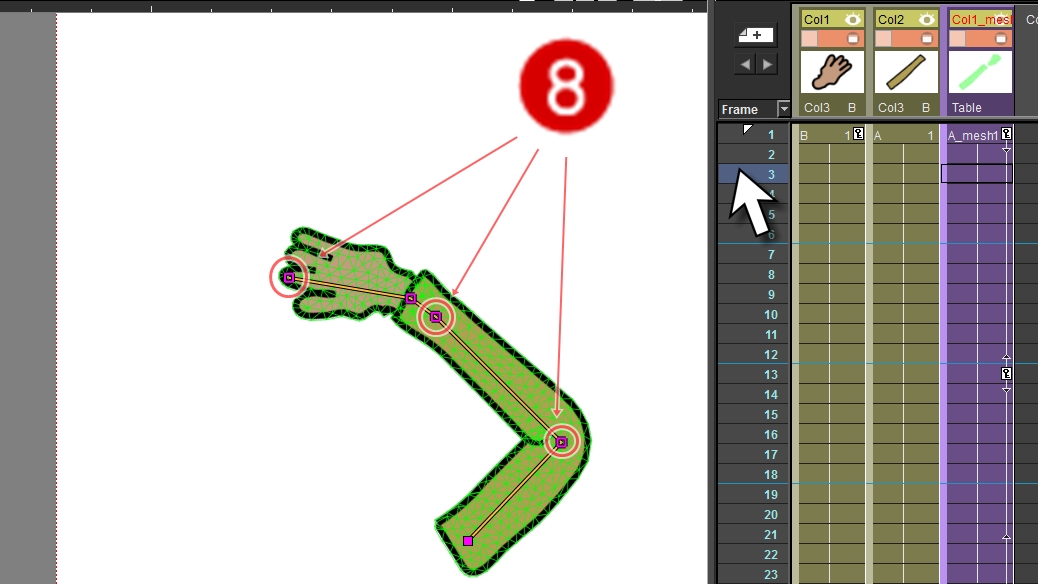
(7) in Plastic > Animate mode, un-check "Keep Distance" (up right) and put closer these two nodes (then check "Keep Distance" again).

(8) Animate element as usual.
More examples here, with the method explained by Toonz Harlequin 7.1. They create one sub-Xsheet with diferent levels, and then they create a mesh from this sub-Xsheet. Seems to have more sense, perhaps we can use this method when the feature "Edit sub-Xsheet in place" will be back :). https://youtu.be/T50aOjWUr6E?t=4m (4:00 to 4:11)
---------------------------------------------
Indexed here : https://workflowy.com/s/JtI13Zub8a#/d515ddc4e4da
Juls_3000
May 7, 2016, 3:08:16 PM5/7/16
to opento...@googlegroups.com
I edited the message above: Now with two methods :
1. Using one columnl (new)
2. Using more than one column.
Juls_3000
May 12, 2016, 5:16:34 AM5/12/16
to OpenToonz Users Forum

exile
Oct 4, 2016, 4:03:18 PM10/4/16
to OpenToonz Users Forum
Thanks for posting this, Juls, I tried both variations and couldn't see any difference between animating with the hand in a different or in the same column. Have you experienced getting better movements one way or the other? Is there any reason to use the more complicated method of connecting separate meshes through the vertexes in the schematic editor?

Tony Puglieso
Aug 27, 2022, 12:28:32 PM8/27/22
to OpenToonz Users Forum
Hi 😁 i think on the second form you can change the image of lvl on the extremes hands, like closed hand, open hand, pointing and more.
Reply all
Reply to author
Forward
0 new messages