
Step by Step How to Create a FREE Payoneer Account
322 views
Skip to first unread message

pundi...@gmail.com
Feb 5, 2016, 2:20:03 AM2/5/16
to Online Business Opportunities
Step by Step How to Create a FREE Payoneer Account
Having discussed in the previous article "What is Payoneer? Why SetiapAffiliate Marketer Need To Have? "This time I will discuss step by step how to create a FREE Payoneer account in full.
Ie you need to prepare your personal data as identity cards your ID (National ID). Before I explain further, there are two things you need to know about Payoneer.
Each person is only allowed to enroll one time only. You do not need to make more daru one Payoneer account.
When you have successfully enrolled in Payoneer.com, then you will get one card known as Payoneer Prepaid MasterCard. This card will be sent free of charge to you according to the shipping address that you entered in the registration form Payoneer. This card can be used for shopping or cash withdrawals at all ATM machines bearing the MasterCard worldwide. Interesting right?
Well, if you're ready to make the Payoneer account?
Let's started !!!
Step 1
Please open Payoneer website here and click on Sign Up to register yourself.

Select the option Prepaid MasterCard, so you will get a card from Payoneer

Step 2
Fill in your personal information, such as First Name, Last Name, Email Valid you and your Date of Birth (personal data shall be in accordance with the identity of your ID card). Then click the Next button to continue.

Step 3
Your address data content, No Mobile you correctly. This address customize to your KTP identity. When finished, click the Next button to continue.

Step 4
The next step is to fill in your password. This password is the password to access your Payoneer account later. This password is at least 7 characters, contains at least one letter and one number. Then fill the Security Question for the security of your information. Then click Next.

Step 5
Here, you are allowed to choose the Type of Government ID, such as Driving License (SIM), National ID (KTP), or Passport. Which should be chosen? I advise you to use the National ID (KTP)
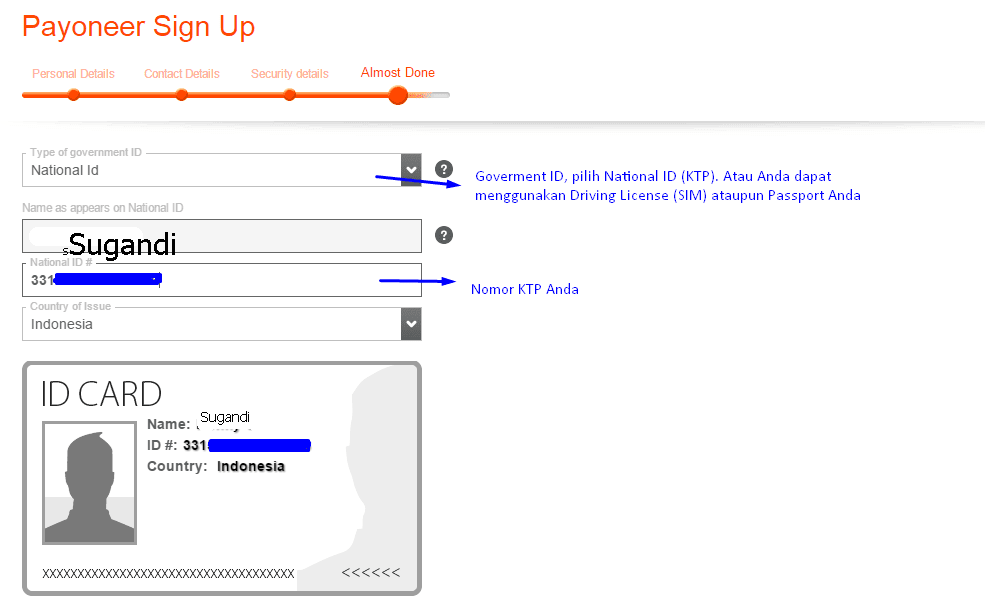
Then scroll down, you'll find the Shipping Address
If you want to write the Shipping Address / Mailing Address is different from the address ID, please mark the "Enter Alternate Shipping Address". Or skip this section if you are mailing you at the address on your ID card.
Good Shipping Address or address that you have previously input should be as clear and complete as possible, because this address will be used for the delivery of Payoneer Mastercard Prepaid Card.
Mark 3 parts (I Agree ...) stating that you agree with the rules Payoneer

After you click the ORDER button, it will appear as below.

There is one more thing you need to do is to open your email that has been registered previously. Then you need to click the COMPLETE REGISTRATION button in the email.

Some time later, you will get a notification email from Payoneer stating that you have completed the steps Payoneer account registration.
Remember: when you create Payoneer account, then you will get a Payoneer Prepaid MasterCard (Debit cards) that can be used for shopping or pull cash at any ATM machine MasterCard logo worldwide.
Here is the email notifications from Payoneer.


Up here you have completed your part. Wait a few days later (even less than 24 hours), you will receive email notifications back containing that filing your registration has been approved, then the Payoneer Prepaid MasterCard ready to be sent to your address.
You will receive a letter containing the card from Payoneer Prepaid MasterCard from Payoneer. Immediately activate your card before you use it.

Thus tutorial step by step how to make the Payoneer account with the Internet.
Good luck!
Reply all
Reply to author
Forward
0 new messages