
Raspbery Pi 4 8GB - Which is the correct version of MotionEye To Install?
3,514 views
Skip to first unread message

Steven Tobin
Aug 27, 2020, 1:02:51 PM8/27/20
to motioneye
Hi everyone.
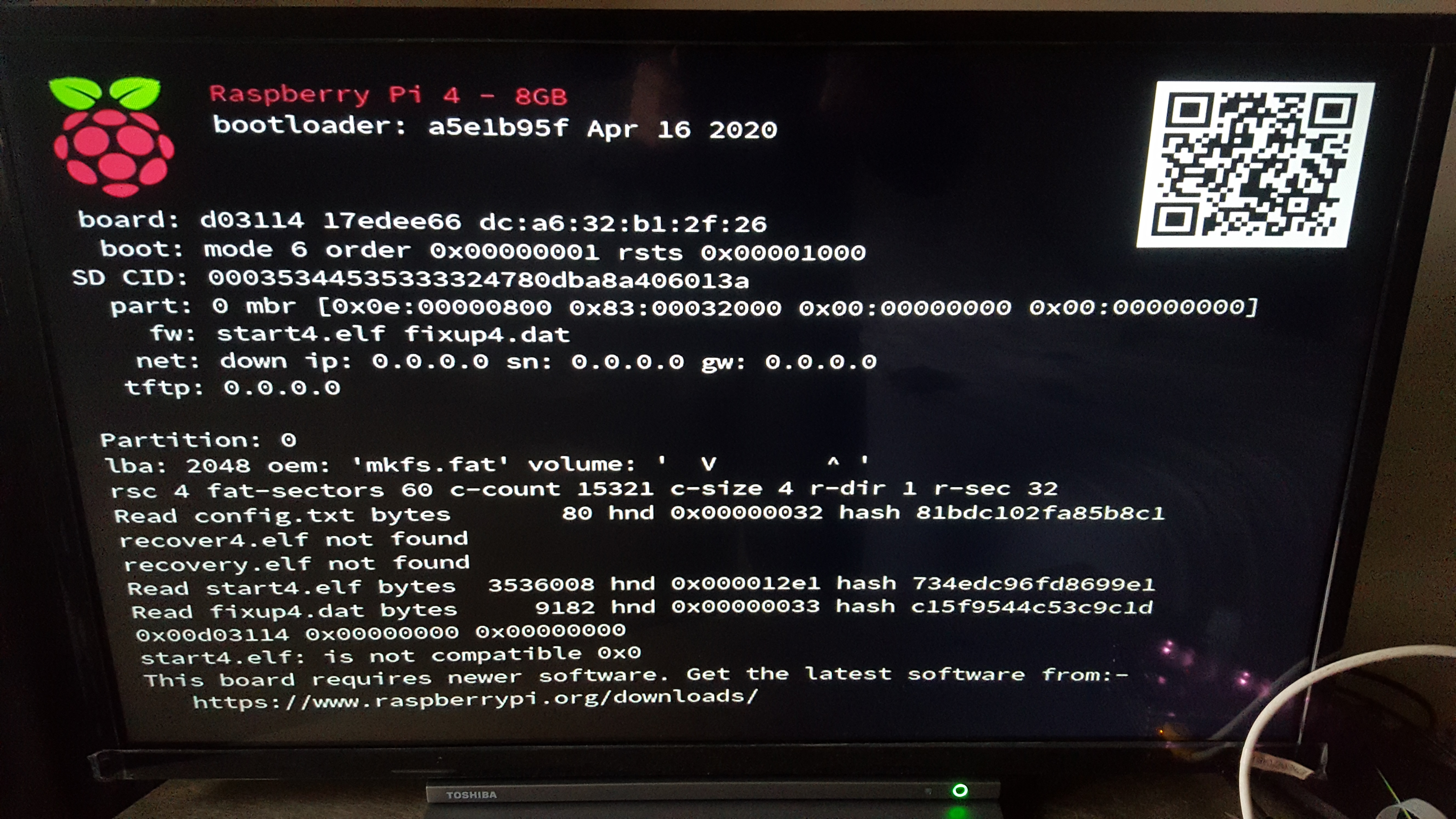
So pleased I found the group.... Im pretty new to this!
I have a Pi 4 8gb and tried flashing the following images onto my SD Card, in seperate attempts :) .
I have a Pi 4 8gb and tried flashing the following images onto my SD Card, in seperate attempts :) .
motioneyeos-raspberrypi4-20200606
motioneyeos-raspberrypi4-20190911
I had formatted the SD card, downloaded either file above and unzipped....
Then I opened Etcher, selected one of the folders above, choose my target (sd card) and proceeded to flash. The flash seemed to complete fine.....
Then I opened Etcher, selected one of the folders above, choose my target (sd card) and proceeded to flash. The flash seemed to complete fine.....
However each time I insert the SD card and boot up the PI I get a message stating that this board requires newer software..... I get the feeling I am missing something.
Could some kind sole point out where I am going wrong please?
Thank you for looking!
Could some kind sole point out where I am going wrong please?
Thank you for looking!

Kevin Shumaker
Aug 27, 2020, 1:13:12 PM8/27/20
to Steven Tobin, motioneye
You need to copy start4.elf and fixup4.elf from a new RaspberryPiOS (fully updated) or use the ones attached
--
You received this message because you are subscribed to the Google Groups "motioneye" group.
To unsubscribe from this group and stop receiving emails from it, send an email to motioneye+...@googlegroups.com.
To view this discussion on the web visit https://groups.google.com/d/msgid/motioneye/7453c8e2-1d86-4593-843c-022bf04f4e25n%40googlegroups.com.
--
Thanks
Kevin Shumaker
Kevin Shumaker
N38° 19' 56.52"
W85° 45' 8.56"
Semper Gumby
“Don't tell people how to do things. Tell them what to do and let them surprise you with their results.” - G.S. Patton, Gen. USA
Ethics are what we do when no one else is looking.
Quis custodiet ipsos custodes?
“There is no end to the good you can do if you don’t care who gets the credit.” - C Powell
You know we're sitting on four million pounds of fuel, one nuclear weapon and a thing that has 270,000 moving parts built by the lowest bidder. Makes you feel good, doesn't it?
Steven Tobin
Aug 27, 2020, 2:52:56 PM8/27/20
to motioneye
Hi Kevin,
Thank you so much for the information. I think we`ve taken a step closer!!
Can I just ask if the following images (attached) are normal during the install, and if further steps are required?
The reason I ask is i`m being asked for an admin login, via the terminal window a few seconds or minutes of install??
The reason I ask is i`m being asked for an admin login, via the terminal window a few seconds or minutes of install??
The tutorial I am following does not mention about a terminal window login, only a login via a web browser......
Now.... Where the admin login displays on the terminal window, it will not allow me to type anything either?
Now.... Where the admin login displays on the terminal window, it will not allow me to type anything either?
I have a wireless keyboard/mouse and assumed maybe wireless drivers were causing an issue, so I tried a good working "wired keyboard" as well.... That did not work either?!
I have used a wireless scanner and I can see the pi camera is listed. Then if I visit the IP displayed for my camera I get the browser display, which I can access using the default admin login..... However no camera is working??!
I have used a wireless scanner and I can see the pi camera is listed. Then if I visit the IP displayed for my camera I get the browser display, which I can access using the default admin login..... However no camera is working??!
Sorry to sound a real numpty here!!! Maybe I am just overthinking or over reading everything. I have provided 2 screenshots to explain better :)
Any thoughts would be greatly appreciated.
Kind regards, Steven.


Kevin Shumaker
Aug 27, 2020, 3:02:28 PM8/27/20
to Steven Tobin, motioneye
USB is broken on the 8GB boot with the modified files. Known issue.
You should be able to SSH in normally, or get into the WebGUI, using Admin and no password, until you change something.
Are you trying to use a USB connected camera? You didn't mention that in your OP. That won't work.
A work around, until @CCRISAN runs a new build, is to install Raspberry Pi OS, and install motion/motionEye following the instructions here:
If you are using any other camera (CSI - ribbon cable, or network)
you should be able to connect normally.
To view this discussion on the web visit https://groups.google.com/d/msgid/motioneye/d97fb8a6-67f5-442d-a4c7-81299409dd0fn%40googlegroups.com.
Steven Tobin
Aug 27, 2020, 3:15:15 PM8/27/20
to motioneye
Thanks Kevin.
It is cable ribbon night vision camera I got from ebay here
https://www.ebay.co.uk/itm/Raspberry-Pi-Camera-Night-Vision-with-Heat-Sink-130-Degree-1080p-OV5647/153912670948?hash=item23d5e8fae4:g:DfEAAOSwNHZezHOf
Could I confirm that the Terminal Window screenshot I attached, is as far as the install normally goes??? It felt really quick :)
Next the install/tutorial I am following mentioned creating a new file called supplicant.conf with the following code, which I have edited to my WIFI settings. I will stress that during install & boot the PI was connected via ethernet......
Please correct me, however I have seen other installs/tutorials they mention saving a wpa_supplicant.conf...... Im slightly confused.
Please correct me, however I have seen other installs/tutorials they mention saving a wpa_supplicant.conf...... Im slightly confused.
Again sorry if it seems if I am over complicating matter, just unsure whether a .config file could be causing the problem!
Thanks for your expertise!
Kevin Shumaker
Aug 27, 2020, 3:26:07 PM8/27/20
to Steven Tobin, motioneye
Camera should be a MMAL type camera if using the ribbon cable to the CSI port.
Yes, you should get the meye-<random number> prompt, and just above it should be the IP address it's using.
The correct name of the file is wpa_supplicant.conf, and should look something like this:
-----
ctrl_interface=DIR=/var/run/wpa_supplicant GROUP=netdev
update_config=1
country=US
network={
ssid="ssid"
psk="password"
key_mgmt=WPA-PSK
}
update_config=1
country=US
network={
ssid="ssid"
psk="password"
key_mgmt=WPA-PSK
}
----
replace ssid and password with yours
To view this discussion on the web visit https://groups.google.com/d/msgid/motioneye/304215a8-3723-498a-9957-6d6f3881bb99n%40googlegroups.com.
Message has been deleted
Steven Tobin
Aug 27, 2020, 11:39:48 PM8/27/20
to motioneye
Thanks again for reply.... I had deleted a previous reply as I was able to get the install running using the correct wpa_supplement file details. When everything boots up I get Done messages, so all looks good!
When I login to browsers I still get nothing show up on the MMAL Camera type. Theres nothing.
I tried a sudo command to display cameras. I forget the command now. However it stated 0 cameras detected & 0 cameras installed.
Luckily I have another SD which has a Raspbian desktop OS installed on it. As its the first time I have owned a camera I had to enable it on Raspbian. Once enabled I rebooted and I was able to take a picture and video. It also saved the image or video onto my Rasp desktop so I could view......... So I know the camera works and that I have installed/fitted it ok?
I am stumped :(
Kevin Shumaker
Aug 28, 2020, 4:49:59 AM8/28/20
to Steven Tobin, motioneye
Unfortunately, you may have to wait for @ccrisan to generate a new version that supports the 8GB version fully, as I too am at a loss as to why a known good working in Raspbian CSI camera is not working in motionEyeOS. (Unless it's a copy of the new RPI-HD camera, which also doesn't work).
You could bypass the issue(s) by installing the latest RaspberryPiOS (Lite), and install motion/motionEye following these instructions:
until the new version is generated.
To view this discussion on the web visit https://groups.google.com/d/msgid/motioneye/c01b6a86-b1ff-4d5c-b2ba-f7c903afd2efn%40googlegroups.com.
Steven Tobin
Aug 28, 2020, 6:05:04 PM8/28/20
to motioneye
Thanks again for supporting me. I really could not got this going without you. The only way I got this working on a Pi 4 8gb was via the link you provided above.
I did notice that there was no reboot button like on the original version. You can change settings, save, view camera etc. I just have to re-boot via SSH.
I can deal with that though..... Great piece of software!
Thanks again!!
Reply all
Reply to author
Forward
0 new messages