
Write Urdu in ALL of your computer programs...
58 views
Skip to first unread message

Hasan
Jun 15, 2010, 11:45:12 AM6/15/10
to Hasan Shabbir
[resent for new members]
Using the Techniques as mentioned below, you will be able to use all your computing applications with URDU language and Readable Nastaleeq Font, As I am using the same for typing Urdu in Word Excel, Powerpoint, and a lot of Windows Applications.
Using the Techniques as mentioned below, you will be able to use all your computing applications with URDU language and Readable Nastaleeq Font, As I am using the same for typing Urdu in Word Excel, Powerpoint, and a lot of Windows Applications.
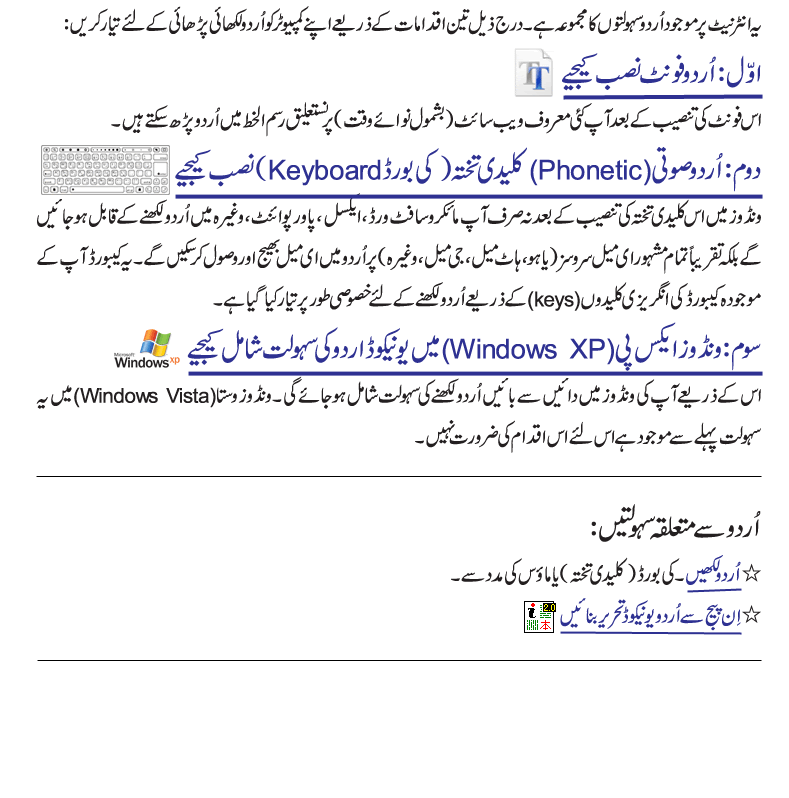
Step 1: Urdu Nastaleeq Fonts Installer (v2.1)
Released 10th March, 2009
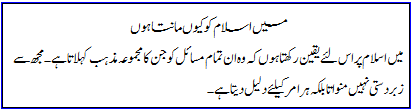
| اگر آپ یہ اردو الفاظ اسی طرح ٹھیک پڑھ سکتے ہیں جیسا کہ مندرجہ ذیل اسلام کے بارے میں جملہ لکھا ہوا ہے تو پھر اردو فونٹ آپ کے کمپیوٹر پر انسٹال ہوگیا ہے یا پہلے سے ہی موجود ہے ۔اس لئے آپ کو مندرجہ ذیل ہدایات پر عمل کرنے کی ضرورت نہیں۔ ۔ لیکن اگر یہ تحریر کا انداز ویسا نہیں تو آپ فانٹ انسٹال کرکے اس کو مزید نکھار سکتے ہیں۔ شکریہ اور جزاکم اللہ |
Sample Image
How to install Urdu Fonts on Windows | اردو فانٹ کیسے انسٹال کریں؟ |
| If you are using Windows XP or Vista computer, you can download and run this program: Jameel Noori Nastaleeq Urdu Fonts Installer - click here to download. When you click, you will see the following popup window, please click on the Run button: | اگر آپ ونڈوز کمپیوٹر استعمال کررہے ہیں تو آپ ایک خوبصورت نستعلیق فانٹ یہاں کلک کرکے ڈاؤن لوڈ کریں اور اپنے کمپیوٹر پر اس پروگرام کو چلائیں تو یہ اردو فانٹ آپ کے کمپیوٹر پر انسٹال ہوجائے گا۔. جب آپ یہ ونڈو دیکھیں تو Run کا بٹن دبائیں |

| |
| and click on Run again if you get this popup window: | اور اب اگر یہ ونڈو دیکھیں تو پھر Run کا بٹن دبائیں |

| |
| after this click on Next button on this screen: | اس ونڈو پر Next کا بٹن دبائیں |

| |
| Next click on Install button: | اور اب Install کا بٹن دبائیں |

| |
| The Urdu Fonts will be installed after this step. Please restart your Internet Browser. Enjoy reading Urdu now! | اس کے بعد اردو فانٹس انسٹال ہوجائیں گے۔ اپنے انٹرنیٹ براؤزر کو بند کرکے پھر چلائیں۔ اب آپ اردو نستعلیق میں پڑھ سکتے ہیں۔ |
If you get a warning on Windows Vista that a program is trying to access your computer, please allow it to run so it can install the font. After this the font will be installed and you can close the window, and restart your browser or refresh/reload this page to view the text in newly installed font. If you install the font again when new update becomes available, you may need to restart your computer.
Clicking it will install the font.Step 2: Install Urdu Phonetic Keyboard (v1.0)
Download and run Urdu Phonetic Keyboard Installer.Windows Vista
If you are using Windows Vista, after installing the above keyboard you can type Urdu on your Windows Vista Computer. To switch between Urdu and English keyboard, you can press Alt+Shift. Or on your taskbar you can see EN or UR and click on it to select the language as shown in this figure:
Windows XP
If you are using Windows XP, you need to follow step 3 to enable Unicode Urdu in Windows.Keyboard Layout
You can also download and print this Urdu Phonetic Keyboard Layout for your reference. This page explains
which key has alef, bay, pay etc. Here is the low resolution image:
for your reference. This page explains
which key has alef, bay, pay etc. Here is the low resolution image:

Step 3: Enable Unicode Urdu in Windows XP
If you are on Windows XP, follow these steps: (Note: this step is not required for Windows Vista)- Click on Start, Settings, and then
Control Panel

- Click on Regional and Language Options. (You may
need Windows XP CD in your CD/DVD drive after this step)

- Click on Languages tab, and select first checkbox
that says "Install files for complex scripts and right-to-left
languages..."
and then click on OK button. This will bring this prompt. Click OK button to continue:


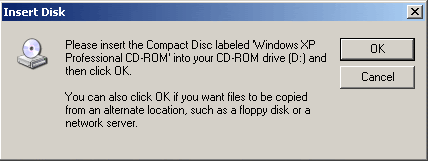
- Now it will ask you for Windows XP CD in your
CD/DVD drive:
Once you press ok and the correct CD is in the drive, it will continue with the installation like this:

- Next it will ask you to restart the computer. Select No
at this time.

- Now click on the Details... button which will bring
this window, which lists the currently installed languages and
keyboards:

- Now click on the Add... button which will bring
this window, where you will select Input language: Urdu
and Keyboard layout/IME: Urdu Phonetic 1.0 (this is
the keyboard layout that we installed in step
2)

- Now press OK on all windows to close them. You can restart
your computer now to load new settings. Once you have
restarted, you can see that Urdu language is available in your taskbar
as shown in this screen shot:

- Now to switch between Urdu and English, you can press Alt+Shift. Or on your taskbar you can see EN or UR and click on it to select the language.
--
|-| /\ $ /\ |\|
IT Professional,
Human Scientist
Ph: +92 - 321 5393145
http://www.aesthetictech.net
Reply all
Reply to author
Forward
0 new messages