
easyBlue 20151201 Update with improved installation instructions
976 views
Skip to first unread message

Craig Tucker
Dec 1, 2015, 12:55:43 PM12/1/15
to Easy!Appointments - Support Group
This is the latest update of easyBlue 20151201
I am starting a new thread on easyBlue to consolidate what has been learned from this previous thread
This build adds some code to improve the date picker on the front end. Now, when selecting disabled dates the notice that there are no available appointments for that time slot appears.
Many updates were made without numbering. That can be confusing. Instructions were scattered throughout the thread and difficult to follow for some. This will hopefully make it clear.
Contents:
1. What it is
2. Features
3. Installation instructions
4. Issues
What it is
easyBlue 20151201 is my modification of Easy!Appointments 1.1 beta by A.Tselegidis <alextse...@gmail.com>. This is a work in progress done by an armature programmer who’s day job is psychotherapy. Use at your own risk. easyBlue adds some useful features to EA. Easy!Appointments 1.1 is a beta. It is not complete. Do not try to install this unless you have first had 1.0 up and running. Do not try to make a fresh installation of EA from this build. Remember 1.1 is in beta phase. There are some problems with Composer. Do not bother with that. This build works pretty well but there are likely problems with it too. Let me know and I will keep improving it.
Features
Recurring appointments
Recurring appointments are supported through Google Calendar Sync. The sync with Google Calendar is modified to accurately reflect creation of recurring appointments in Google Calendar. So, if a client creates an appointment the provider can modify that appointment in Google Calendar to be recurring and EA will reflect that. Modifications that you may want to play with: The default sync time period is set to 60 days out. Things you need to know about this:
- In order for EA fields to sync with Google Calendar I have added them to the notes section delimitted as numbers by barrels “| |” One number represents the customer and the other represents the service. This should not ever be deleted. You can use the notes field as always but leave the delimited numbers at the end of the notes.
- Unavailable days no longer have a default “unavailable” title. This is to allow for the name of the client and service when recurring appointments sync back.
- To adjust the sync period go to libraries/google_sync.php line 301 and change 60 to what ever you want. The longer the period the longer the sync time.
- When creating recurring events in google calendar, if the first appointment in the cycle was created in EA, that hash will be changed when the recurring cycle starts. So, if a person uses the email to edit that appointment it will appear to be gone and they will not be able to edit it. So, to work around that, In google calendar, I make a duplicate appointment for the next available time slot and then create the recurring appointment sequence. They will only get a google notice of the addition. The reminders will work fine with this.
- If you make a recurring appointment in Google Calendar, you need to manually sync in EA for the change to be reflected in EA.
Waiting List
A waiting list feature: Clients can register for a waiting list to be informed of openings in the next 60days. They remain on the waiting list for 30 days. To use this feature you must set up a cron job to launch this nightly. I will describe how to set up the cron job in the instructions section.
Automatic Sync of Google Calendar
This is done by Cron Job (see instructions below). The code was modified to allow cron to sync the Google calendar as often as you need. I sync nightly. This is set through making a cron job as described in the instructions.
ICS File Attachment
Appointments are sent out with an ICS file attached. In outlook this will automattically add an appointment to the calendar of the customer. Also it will be deleted from the calendar when deleted in EA as well. In Google it is not fully functioning because EA uses PHPmailer which will only allow one or the other formats. I selected to favor outlook because EA allows a customer to select to add to their calendar when they book. Unfortunately Google calendar users cannot get the automatic deleations. So, in the future I will try to migrate EA over to another mailer system that will better accommodate all calendar systems.
Sunday-Saturday format
All calendars are changed to Sunday-Saturday format
USA Time Formatting
The date and time is set to Month/Day/Year and AM/PM on the front end but not on the back end. I ran in to too many conflicts on the back end, so I have kept it the way it is.
60 Min Default Time Period for Appointments
The default appointment time period is 60min with 30min padding allowing scheduling on the hour or half only. Modifications:
If you want to make changes regarding the default structure back to every 15 min: All that is done in /application/controllers/appointments.php lines 478-498.
For example Alex's default 15 min interval code is:
if ($minutes % 15 != 0) { // Change the start hour of the current space in order to be // on of the following: 00, 15, 30, 45. if ($minutes < 15) { $start_hour->setTime($start_hour->format('H'), 15); } else if ($minutes < 30) { $start_hour->setTime($start_hour->format('H'), 30); } else if ($minutes < 45) { $start_hour->setTime($start_hour->format('H'), 45); } else { $start_hour->setTime($start_hour->format('H') + 1, 00); } } $current_hour = $start_hour; $diff = $current_hour->diff($end_hour); while (($diff->h * 60 + $diff->i) >= intval($_POST['service_duration'])) { $available_hours[] = $current_hour->format('H:i'); $current_hour->add(new DateInterval("PT15M")); $diff = $current_hour->diff($end_hour);Highlight Available Days and Disable Unavailable Days
The date picker blocks out days that are filled making it easier for clients to find open days. The default period for booking is 60 days. To modify the default booking period:
- Default 60 day view: assets/js/frontend_book.js, line 29,
- AND application/controllers/appointments.php, line 489, and 408
Cellphone Messaging Support
There is a field for selecting a cell carrier . This allows for sending text message reminders of upcoming appointments. If a sell carrier is not selected, only a email reminder is sent. In order to use you need to manually add the database as described in the instructions.
Reminder Messages Sent Out Daily
This is set up through cronjob and the days out for reminder can be edited in \application\controllers\cli\reminders.php line 28.
How to install
First install 1.0 and have it working with the database, providers, services, and working plan. There are problems with composer. So just setup 1.0 and make sure that you're able to to run ea. I would schedule an appointment. Make sure that you get the email telling you that you scheduled an appointment. I be sure that you can cancel an appointment by clicking the link in the email. I would also set up Google Sync if you plan to use it . That would indicate that you have set it all up appropriately in 1.0.
Update the database
To add a `id_cellcarrier` column to `ea_users` table for text messaging to work:
ALTER TABLE `ea_users` ADD `id_cellcarrier` BIGINT(20) NOT NULL AFTER `id_roles`; Add an ea_cellcarrier table to the database:
CREATE TABLE `YourEasyAppointmentsDB`.`ea_cellcarrier` ( `id` INT(11) NOT NULL AUTO_INCREMENT, PRIMARY KEY(id), `cellco` VARCHAR(30) CHARACTER SET utf8 COLLATE utf8_general_ci NULL DEFAULT NULL,`cellurl` VARCHAR(30) CHARACTER SET utf8 COLLATE utf8_general_ci NULL DEFAULT NULL)to fill the ea_cellcarrier table with data (check to be sure that these extensions are correct and useful in your area. Google cell phone URLs or check numbers with http://www.freecarrierlookup.com/ or similar) :
INSERT INTO `YourEasyAppointmentsDB`.`ea_cellcarrier` (`id`, `cellco`, `cellurl`) VALUES ('1', 'AT&T', '@txt.att.net'), ('2', 'T-Mobile', '@tmomail.net'), ('3', 'Verizon', '@vtext.com'), ('4', 'Sprint', '@messaging.sprintpcs.com'), ('5', 'Sprint PM', '@pm.sprint.com'), ('6', 'Virgin Mobile', '@vmobl.com'), ('7', 'Tracfone', '@mmst5.tracfone.com'), ('8', 'Metro PCS', '@mymetropcs.com'), ('9', 'Boost Mobile', '@myboostmobile.com'), ('10', 'Cricket', '@sms.mycricket.com'), ('11', 'Nextel', '@messaging.nextel.com'), ('12', 'Alltel', '@message.alltel.com'), ('13', 'Ptel', '@ptel.com'), ('14', 'Suncom', '@tms.suncom.com'), ('15', 'Qwest', '@qwestmp.com'), ('16', 'U.S. Cellular', '@email.uscc.net') Layer on easyBlue
When all of that is done, rename the folder something like easy appointment old. Do not delete the database because you will be using it with the new insulation. Then layer on an installation of easy appointments using the 1.1 files. Name the new ea
folder your old folders name. Copy the information you have in your configuration file to the config file in 1.1 and that should do it.
Add Cron Jobs
Reminders, Daily Google Sync, and Waiting list all require a cron job to be set up in your crontab file. This is located in different places depending on your server. Mine is in /etc/crontab. My edits look something like this:
0 22 * * * php /<path to easy appointmtnes>/index.php cli/waitinglist30 7 * * * php /<path to easy appointmtnes>/index.php cli/reminders30 23 * * * php /<path to easy appointmtnes>/index.php google/sync3This sends out a waiging list notice at 10:00 pm (0 22) and appointment reminders at 7:30 am (30 7) and syncs google calendar at 11:30 pm (30 23). One thing worth noting, if you are not used to crontab, sometimes php needs to be the full path to the php binary (e.g. /usr/bin/php). Sometimes spaces need to be tabs to work. Sometimes you need to use "root /usr/bin/php". So if you are using this and you are not getting the cronjob firing mess with these items.
Issues
The following issues apply:
- If you disconnect the sync from google calendar and reconnect you will have duplicate appointments loaded into the calendar, most with "unavailable" subject lines but not all. The most effective thing to do in this case is to go into phpMyAdmin and drop all the duplicates formed on the date of the reconnection. I found this out the hard way. I accidentally disconnected the google sync and reconnected. Clients complained of getting two reminders, one saying unavailable. Watch out. I a code could be added to correct for this. That is down the line. This fix is easy enough for me.
- In the EA backend, Full Calendar View, only appointments created in EA are visible, the appointments created by Google calendar (recurring appointments) are not. This is not a problem in day or week view. I think this would be easy to change. It would be nice if the client appointments created in Google Calendar were a different color than the Unavailable spots.
- I blacked out some days for vacation time. However, recurring appointments were also posted on that week. I neglected to delete them. As a result appointment reminders were sent out for them one day (I caught it at that point). So, be sure to delete appointments on your vacation time or you will have a bunch of disappointed and frustrated clients. It would be nice to add a code that would block reminders where ever there is a concurrent vacation block.
Craig Tucker
Dec 5, 2015, 1:26:26 PM12/5/15
to Easy!Appointments - Support Group
Images of easyBlue additions
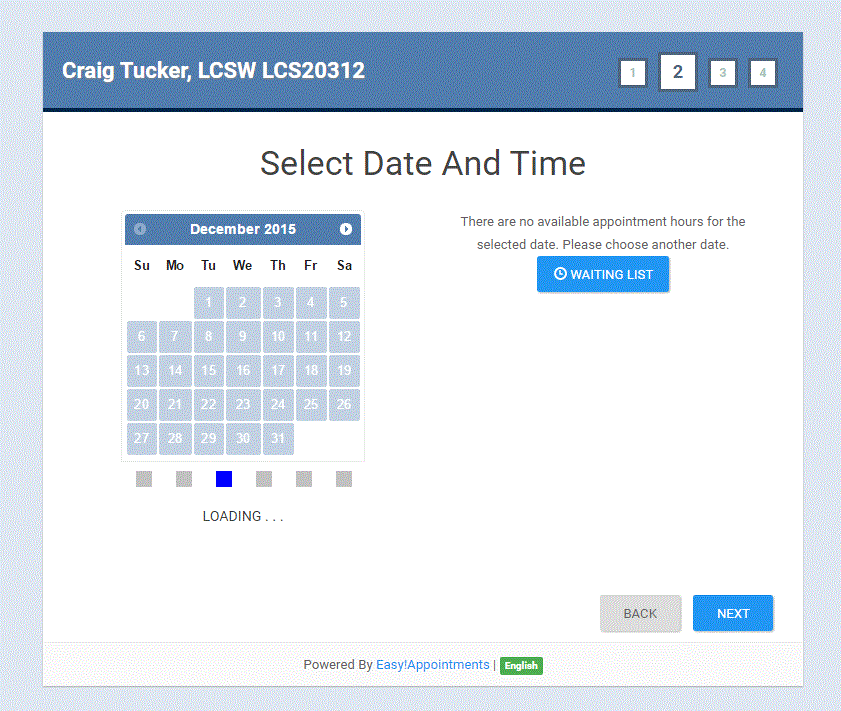
A loading bar was added because when you sync 60 days of data with Easy!Appoingments it takes about 7-10 seconds to fill the calendar.

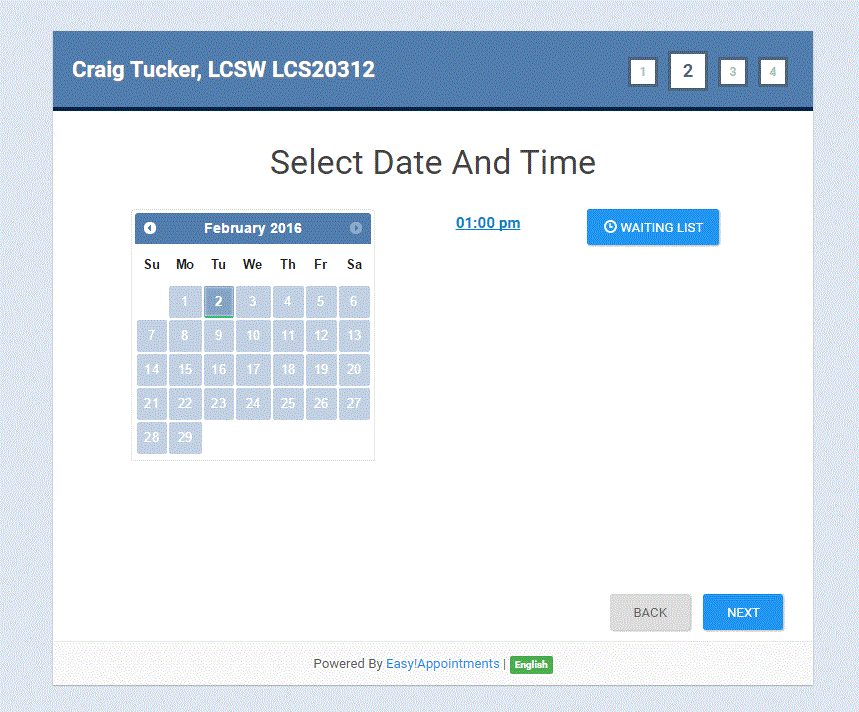
Unavailable days are blacked out. In this case the next available appointment was not for about 60 days out.
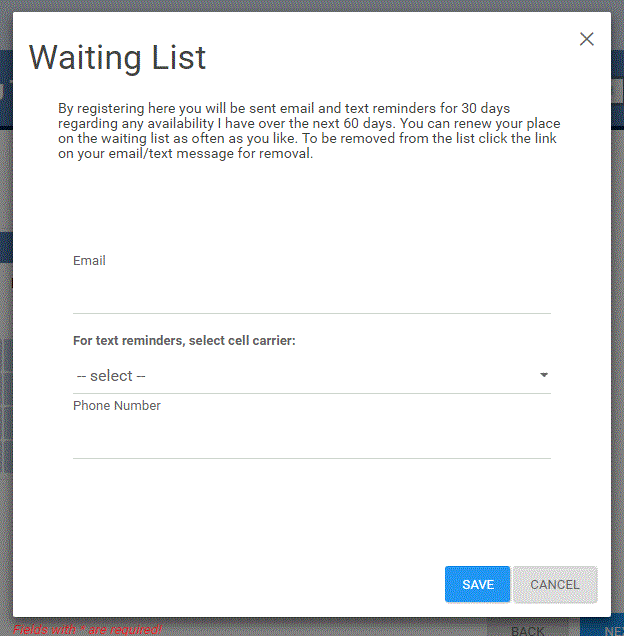
A waiting list feature is added for notices of availability to customers.

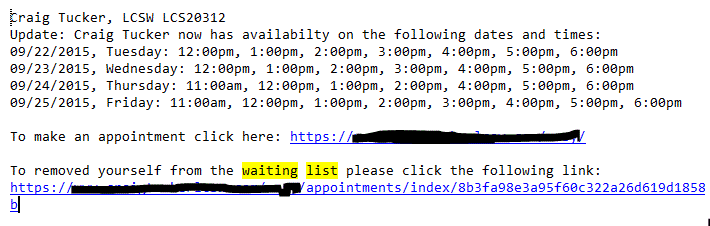
Text Message and E-Mail message format for the daily waiting list notices
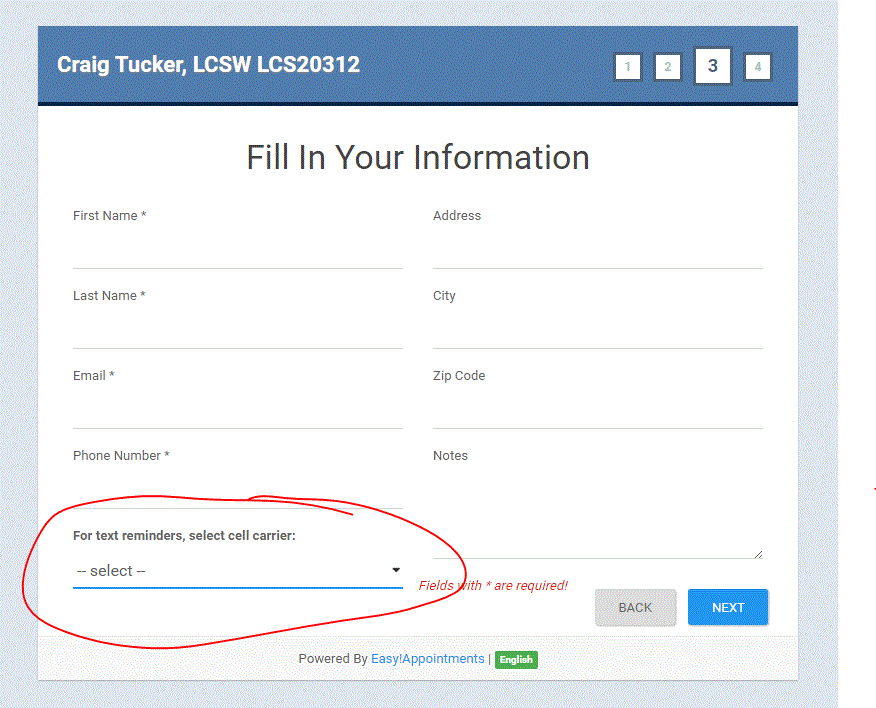
Added option for Text Message Reminder Messages

Added return button for more booking From Andrew Whitaker // https://groups.google.com/d/msg/easy-appointments/PsZl_Hbp0jc/MkQsjk9PBQAJ
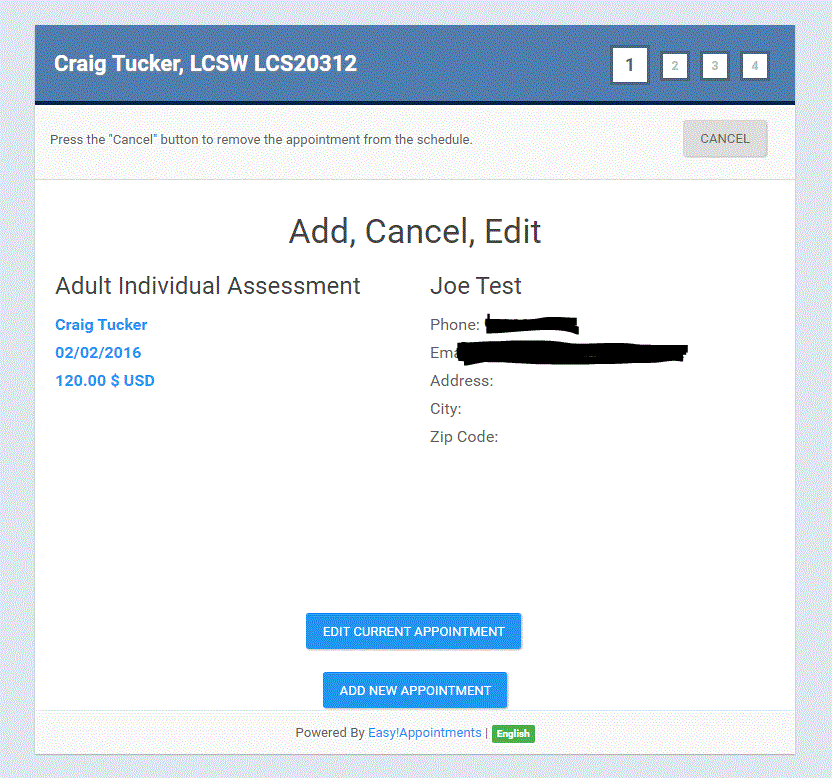
Reformatted edit screen per From Andrew Whitaker // https://groups.google.com/d/msg/easy-appointments/PsZl_Hbp0jc/MkQsjk9PBQAJ
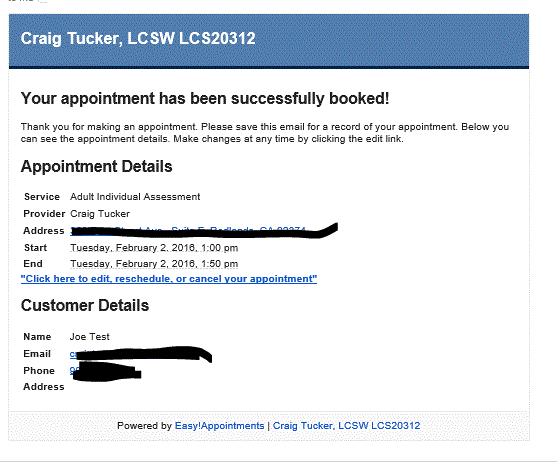
Where email clients are set up not to import ICS files you have the standard Easy!Appointment screen. I have added an address line for the location off the appointment with a google maps link. This is a picture of gmail where auto import of iCalendar is not selected in the gmail settings.
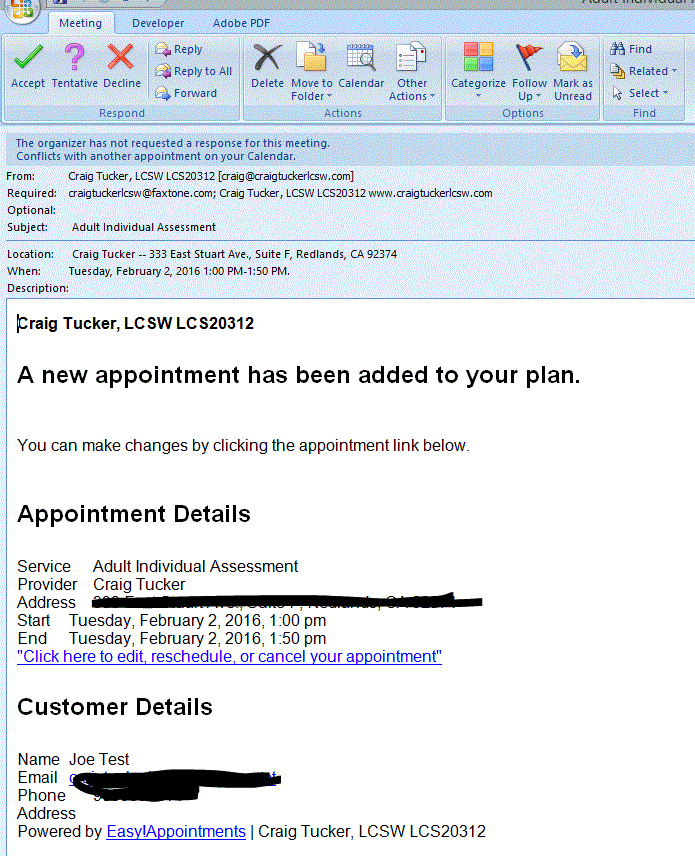
In Outlook, ICS files are automatically imported and this screen appears in the body of the calendar item with the accept and decline items (only partially supported). The nice thing is that the event automatically imports into the Outlook Calendar
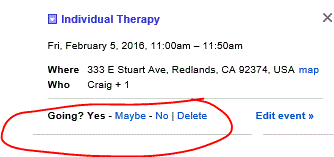
If Auto Import of Calendar Files is selected in gMail, the ICS file in the notification is automatically added to the calendar and (unfortunately) the email is deleted. The downside to this is that the link to the appointment is also deleted. I am not sure how to change this yet. This is a picture of thee appointment on the gCal front end hover over the appointment. The yes/no/maybe buttons are again available. This is only partially supported. That is, it will notify you if they decline the appointment but it will not delete in Easy!Appointments. You will have to do this by hand.
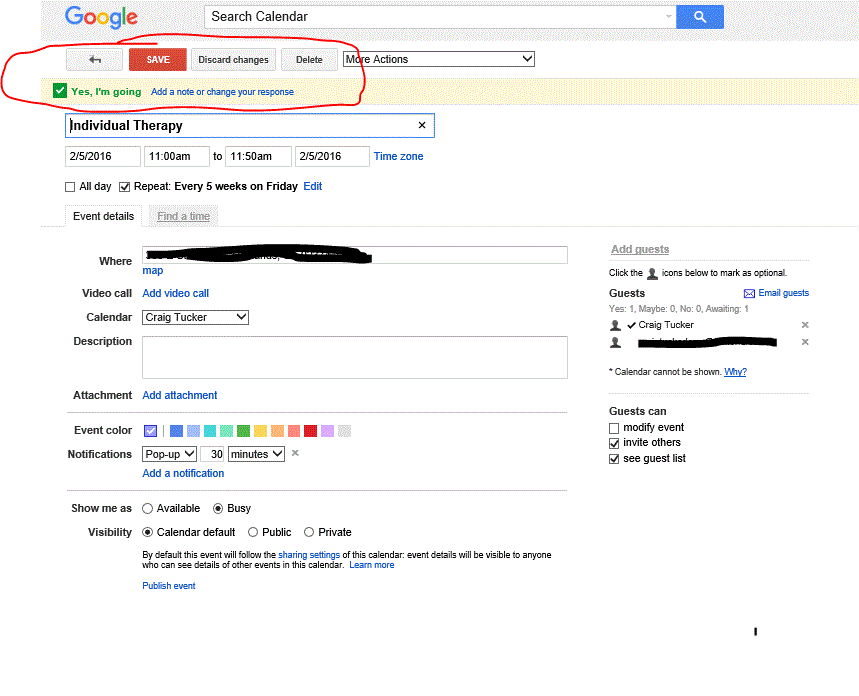
This is the link in to the Google Calendar on the client end.

This is a picture of the format for the 3 day reminder for appointments that is sent to email and to text message.

Thomas Gregory
Jan 11, 2016, 8:35:01 PM1/11/16
to Easy!Appointments - Support Group
I get error message when someone deletes their appt.
It also wont send text alerts when someone puts a cell carrier in the box....It always defaults to sending an email
any help greatly appreciated...
Craig Tucker
Jan 12, 2016, 2:18:08 AM1/12/16
to Easy!Appointments - Support Group
Let me know what the error message is saying. I am not getting one. Regarding the text messages. I did not arrange for the notice of booking to go out with text. That would be easy to set up down the road. But, text appointment reminders should go out if you make a crontab setting. Also text notices of availability should go out.
I am currently updating to 1.1 and I may add the text to the notice with that.

Martin
Jan 22, 2016, 6:33:01 AM1/22/16
to Easy!Appointments - Support Group
Hi Craig ... I would love to implement your "Highlight Available Days and Disable Unavailable Days" functionality to my E!A installation.
I tried to implement your changes to the datepicker in frontend_book.js on line 61-83 (The beforeShowDay function). However, that doesn't seem to do the trick: The datepicker will disable all dates.
Can you help me out here, please? :-)
Craig Tucker
Jan 23, 2016, 11:28:45 PM1/23/16
to Easy!Appointments - Support Group
If you copy out of my files the following:
You in frontend_book.js also need the variable: timeframe: 60,
and
need to copy the function: updateCalendar and run it in the same places you see it in my file.
Then in appointments.php you need to add the function: ajax_get_available_days.
I think that will do it.
You in frontend_book.js also need the variable: timeframe: 60,
and
need to copy the function: updateCalendar and run it in the same places you see it in my file.
Then in appointments.php you need to add the function: ajax_get_available_days.
I think that will do it.
Martin
Jan 25, 2016, 4:45:24 AM1/25/16
to Easy!Appointments - Support Group
Thanks a lot... That worked out perfectly.
Craig Tucker
Jan 30, 2016, 11:35:07 AM1/30/16
to Easy!Appointments - Support Group
Great, I wish this was standard in Alex's build. It makes it so much easier to find openings.

The Psychotherapy
Feb 12, 2016, 2:18:31 AM2/12/16
to Easy!Appointments - Support Group
I am interested just in the recurring appointment to aplly on 1.1 You van help me on thqt.
Sam
Sam
Craig Tucker
Feb 13, 2016, 8:41:45 PM2/13/16
to Easy!Appointments - Support Group
Hello Sam,
Some things to consider if you do it, if you are running a clinic it is not the best solution. I am a solo psychotherapist and run my own show so the little quirks do not bother me much. You may want to play around with it a bit. I think if you had multiple clinicians in a clinic trying to run this way it would be more trouble than it is worth.
I am running in the latest 1.1 and am delaying posting my latest build until Alex posts his production 1.1. So the example posted here is an early beta and the newer releases are much better. So build on the newest. The basic method I used is consistent across his builds.
The files to look at are
/application/controllers/google.php
You will find multiple changes in this file including dividing the sync into three types of sync, and adding a couple My SQL strings to deal with parsing out client and service information from the notes section of the google post. The three types of sync are necessary to allow the site to load quicker for the client.
Then:
/application/libraries/google_sync.php
In this file you will find lines like this (look for every line with | 'pipes' such as:
$event->setDescription($appointment['notes'] .'|'.$appointment['id_users_customer'] .'|'. $appointment['id_services']);
These add pipes as delimiters to the customer ID annd service variables into the description portion of google calendar.
Then I change the get_sync_events function. I think that does it.
Things to be aware of:
A full sync takes about 2 to 3 minutes. So, it is important to set up a cron job to run the sync at different intervals (at least once a day). I sync once a day at night. Once a day is a must also so that the EA database stays current. The default period I set up is for a 60 day range. If you want a shorter or longer time you will have to make adjustments. This means you will also need to limit the range of your calendar on the font end. Look at what I have done in the frontend.php. Search for the number 60. You will also need to remember to manually sync each time you create a recurring appointment in the Google Calendar. If you do not the recurring sequence will not show up when clients make appointments in EA. I explain how to set up the cron job in the first post.
To make an appointment recurring you must do that in Google calendar. If you take the existing appointment and just make it recurring the result is two appointments on the date of that first appointment in EA. That is not a real problem but it looks funny. One appointment is the EA appointment with a hash and the other is one made by Google calendar to do recurring sessions. To avoid that, when I make recurring appointments I duplicate the appointment in google calendar and make the appointment on the next date of the recurring cycle and then set the recurring pattern in the duplicate. I hope that is clear. It keeps the calendar looking clean.
Editing appointments in google calendar can be problematic if anything happens to mess up the client ID and Session information in the description. You will not get a clean sync. You will not see the appointments reflected in EA client section even though they appear in the calendar. I prefer to edit the appointment in EA to avoid any confusion with this but I have made mistakes and then had to search for the mistake by hand.
Common problems to watch out for If you have a client that has scheduled with two different emails and you try to combine the two accounts if the old data still exists in the Google calendar appointment it will mess up your sync and you will have to try to trace down the mistake to get the sync to work. Other than this it works well. I have been using it now for my very busy practice for about since September 2015. I am very pleased.
Some things to consider if you do it, if you are running a clinic it is not the best solution. I am a solo psychotherapist and run my own show so the little quirks do not bother me much. You may want to play around with it a bit. I think if you had multiple clinicians in a clinic trying to run this way it would be more trouble than it is worth.
I am running in the latest 1.1 and am delaying posting my latest build until Alex posts his production 1.1. So the example posted here is an early beta and the newer releases are much better. So build on the newest. The basic method I used is consistent across his builds.
The files to look at are
/application/controllers/google.php
You will find multiple changes in this file including dividing the sync into three types of sync, and adding a couple My SQL strings to deal with parsing out client and service information from the notes section of the google post. The three types of sync are necessary to allow the site to load quicker for the client.
Then:
/application/libraries/google_sync.php
In this file you will find lines like this (look for every line with | 'pipes' such as:
$event->setDescription($appointment['notes'] .'|'.$appointment['id_users_customer'] .'|'. $appointment['id_services']);
These add pipes as delimiters to the customer ID annd service variables into the description portion of google calendar.
Then I change the get_sync_events function. I think that does it.
Things to be aware of:
A full sync takes about 2 to 3 minutes. So, it is important to set up a cron job to run the sync at different intervals (at least once a day). I sync once a day at night. Once a day is a must also so that the EA database stays current. The default period I set up is for a 60 day range. If you want a shorter or longer time you will have to make adjustments. This means you will also need to limit the range of your calendar on the font end. Look at what I have done in the frontend.php. Search for the number 60. You will also need to remember to manually sync each time you create a recurring appointment in the Google Calendar. If you do not the recurring sequence will not show up when clients make appointments in EA. I explain how to set up the cron job in the first post.
To make an appointment recurring you must do that in Google calendar. If you take the existing appointment and just make it recurring the result is two appointments on the date of that first appointment in EA. That is not a real problem but it looks funny. One appointment is the EA appointment with a hash and the other is one made by Google calendar to do recurring sessions. To avoid that, when I make recurring appointments I duplicate the appointment in google calendar and make the appointment on the next date of the recurring cycle and then set the recurring pattern in the duplicate. I hope that is clear. It keeps the calendar looking clean.
Editing appointments in google calendar can be problematic if anything happens to mess up the client ID and Session information in the description. You will not get a clean sync. You will not see the appointments reflected in EA client section even though they appear in the calendar. I prefer to edit the appointment in EA to avoid any confusion with this but I have made mistakes and then had to search for the mistake by hand.
Common problems to watch out for If you have a client that has scheduled with two different emails and you try to combine the two accounts if the old data still exists in the Google calendar appointment it will mess up your sync and you will have to try to trace down the mistake to get the sync to work. Other than this it works well. I have been using it now for my very busy practice for about since September 2015. I am very pleased.
Reply all
Reply to author
Forward
Message has been deleted
0 new messages