hOw To Install Wine 3.0 on CentOS, RHEL and Fedora

Regis Grundig
Why use Wine:
With the increasing popularity of Linux desktops, There is another requirement occurred that we should have an application which can be used to run Windows applications. Windows has a long list of beautiful applications for users which are not available for Linux users. As we know that Linux does not support windows executable so WineHQ is a solution to run Windows applications and Linux systems.
Wine 3.0 Stable Release has been released on January 18, 2018. The main highlights of this release are full support for window transparency, and the new Mono package for .NET applications support.
This article will help you to install Wine 3.0 Stable Release on RHEL based systems. The Fedora users can use official yum repository provided by Wine team for the installation of latest Wine packages.
Step 1 – Prerequisite
Wine required many development packages. First, we recommend upgrading all system packages using following commands.
yum clean all
yum update
Now install required packages for Wine using yum package manager using following commands.
yum groupinstall 'Development Tools'
yum install libX11-devel freetype-devel zlib-devel libxcb-devel \
      libxslt-devel libgcrypt-devel libxml2-devel gnutls-devel \
      libpng-devel libjpeg-turbo-devel libtiff-devel gstreamer-devel \
      dbus-devel fontconfig-devel
Step 2 – Install Wine
RPM packages for wine are not available for latest versions, So we need to download wine source code. Use below commands to download it.
cd /usr/src
wget http://dl.winehq.org/wine/source/3.0/wine-3.0.tar.xz
tar -Jxf wine-3.0.tar.xz
cd wine-3.0
Configure wine using one of the following command based on your system architecture. This will set the installation environment for Wine according to your system.
For 32-Bit Systems:
./configure

For 64-Bit Systems:
./configure  --enable-win64
Finally run the make and make install command to compile wine source and install it on your system.
make
make install
Step 3 – Check Wine Version
Use the following command to check version of wine installed on your system
On 32-Bit Systems:
wine --version

On 64-Bit Systems:
wine64 --version
How to Use Wine?
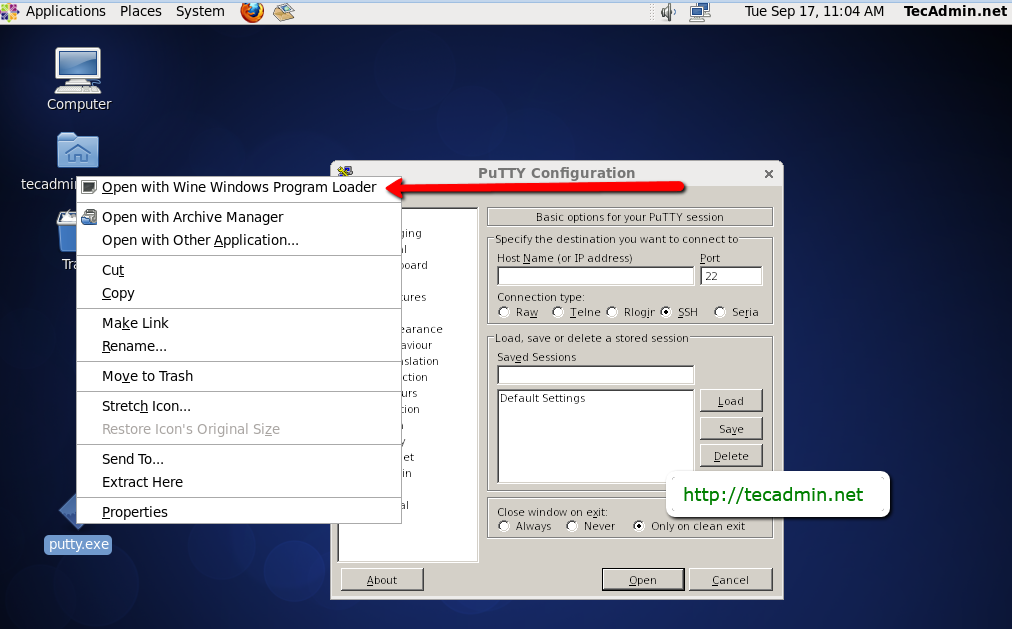
To use wine we need to login to GUI desktop. After that Download a windows executable (.exe) file like PuTTY on your system and open it with Wine as below screenshot or use following command.
wine putty.exe