
[Dummies Guide to Google Blogger Beta] Tips to Customize Blogger Template.
8 views
Skip to first unread message

vin
May 1, 2007, 8:47:46 AM5/1/07
to bloggerbet...@googlegroups.com
[http://betabloggerfordummies.blogspot.com/search/label/Template%20Parts]
Many bloggers are confused how to start customizing the template. Everyone wants their blog to look different from the rest but do not know the different sections of a web page and how they relate to the code. I have already posted on some practical aspects of hacking the template. Here are some tips on how to delineate the various parts of the template.........
I have already described the various parts of the template. The blog page is similarly divided into various divisions called :
1. Body - This is the whole of the page within your browser frame. In the diagram below it is the area within the thick red border. It contains everything on the page including the Blogger Navbar at the top.
2. Outer Wrapper - This is the container which contains all the sections within your blog. In the diagram it is the area within the pink border. This may be represented by another name in your template.
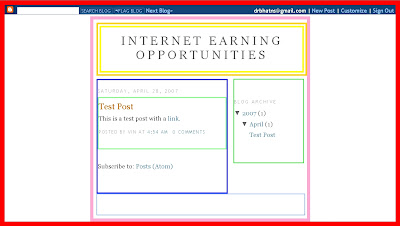
3. Header Wrapper - This is the top section and contains the Header. Inside it is the Title and Description of the blog. The orange and yellow borders in the above diagram delineate this region.
4. The Main Column - This contains the posts column and is usually the widest. It may have one or two sidebars alongside it. It is shown by the blue border. Inside it is the posts section. Notice that the date and the feeds ( Subscribe to Posts Atom) are not inside the posts.
5. The Sidebar/s - They are at the side of the posts column. Notice that the sidebar does not extend right to the foot. It extent is determined by the content within it.
6. The Footer - This corresponds to the header but lies at the foot of the page.
Normally all these sections appear contiguous unless they are in different colors or have borders. When you want to add a third column to customize the template you can easily get confused as to whether it has been added or not? The remedy is to add borders to all the sections so that they can be better visualized. You can remove the code for the borders after finishing the customization.
To add borders you will have to alter the CSS part of the template. So login to Dashboard and click on Layout. Then click on Edit Html subtab of Template tab. First backup Template by clicking on Download Full Template link. Then scroll down in Template box till you locate these codes :
For the body :
body {
background:$bgcolor;
border:#ff0000 15px solid;
margin:0;
color:$textcolor;
font:x-small Georgia Serif;
font-size/* */:/**/small;
font-size: /**/small;
text-align: center;
}
For the Header :
#header-wrapper {
width:660px;
margin:0 auto 10px;
border:5px solid #ffd400;
}
#header {
margin: 5px;
border: 5px solid #ffff00;
text-align: center;
color:$pagetitlecolor;
}
For the Outer, Main and Sidebar Wrappers :
#outer-wrapper {
border:#ffaad4 10px solid;
width: 660px;
margin:0 auto;
padding:10px;
text-align:left;
font: $bodyfont;
}
#main-wrapper {
border:#0000ff 4px solid;
width: 410px;
float: left;
word-wrap: break-word; /* fix for long text breaking sidebar float in IE */
overflow: hidden; /* fix for long non-text content breaking IE sidebar float */
}
#sidebar-wrapper {
border:#00ff00 2px solid;
width: 220px;
float: right;
word-wrap: break-word; /* fix for long text breaking sidebar float in IE */
overflow: hidden; /* fix for long non-text content breaking IE sidebar float */
}
For the Footer :
#footer {
width:660px;
height:50px;
border:#7faaff 2px solid;
clear:both;
margin:0 auto;
padding-top:15px;
line-height: 1.6em;
text-transform:uppercase;
letter-spacing:.1em;
text-align: center;
}
Then add the code line for the border as shown in red above. Preview and save Template. This is a very useful trick when you want to change the width of your blog as it shows you exactly where the blog is on the page.
Whenever you add a new sidebar section add a border line to it just like above. This will help you to "see it" on the web page. Always remember to refresh the cache after saving the template or you may end up looking at an old cached copy of the page.
NOTE : The above sections in your template may be called by different names. The code may also be a bit different.
--
Posted By vin to Dummies Guide to Google Blogger Beta at 5/01/2007 05:15:00 PM
Many bloggers are confused how to start customizing the template. Everyone wants their blog to look different from the rest but do not know the different sections of a web page and how they relate to the code. I have already posted on some practical aspects of hacking the template. Here are some tips on how to delineate the various parts of the template.........
I have already described the various parts of the template. The blog page is similarly divided into various divisions called :
1. Body - This is the whole of the page within your browser frame. In the diagram below it is the area within the thick red border. It contains everything on the page including the Blogger Navbar at the top.
2. Outer Wrapper - This is the container which contains all the sections within your blog. In the diagram it is the area within the pink border. This may be represented by another name in your template.

3. Header Wrapper - This is the top section and contains the Header. Inside it is the Title and Description of the blog. The orange and yellow borders in the above diagram delineate this region.
4. The Main Column - This contains the posts column and is usually the widest. It may have one or two sidebars alongside it. It is shown by the blue border. Inside it is the posts section. Notice that the date and the feeds ( Subscribe to Posts Atom) are not inside the posts.
5. The Sidebar/s - They are at the side of the posts column. Notice that the sidebar does not extend right to the foot. It extent is determined by the content within it.
6. The Footer - This corresponds to the header but lies at the foot of the page.
Normally all these sections appear contiguous unless they are in different colors or have borders. When you want to add a third column to customize the template you can easily get confused as to whether it has been added or not? The remedy is to add borders to all the sections so that they can be better visualized. You can remove the code for the borders after finishing the customization.
To add borders you will have to alter the CSS part of the template. So login to Dashboard and click on Layout. Then click on Edit Html subtab of Template tab. First backup Template by clicking on Download Full Template link. Then scroll down in Template box till you locate these codes :
For the body :
body {
background:$bgcolor;
border:#ff0000 15px solid;
margin:0;
color:$textcolor;
font:x-small Georgia Serif;
font-size/* */:/**/small;
font-size: /**/small;
text-align: center;
}
For the Header :
#header-wrapper {
width:660px;
margin:0 auto 10px;
border:5px solid #ffd400;
}
#header {
margin: 5px;
border: 5px solid #ffff00;
text-align: center;
color:$pagetitlecolor;
}
For the Outer, Main and Sidebar Wrappers :
#outer-wrapper {
border:#ffaad4 10px solid;
width: 660px;
margin:0 auto;
padding:10px;
text-align:left;
font: $bodyfont;
}
#main-wrapper {
border:#0000ff 4px solid;
width: 410px;
float: left;
word-wrap: break-word; /* fix for long text breaking sidebar float in IE */
overflow: hidden; /* fix for long non-text content breaking IE sidebar float */
}
#sidebar-wrapper {
border:#00ff00 2px solid;
width: 220px;
float: right;
word-wrap: break-word; /* fix for long text breaking sidebar float in IE */
overflow: hidden; /* fix for long non-text content breaking IE sidebar float */
}
For the Footer :
#footer {
width:660px;
height:50px;
border:#7faaff 2px solid;
clear:both;
margin:0 auto;
padding-top:15px;
line-height: 1.6em;
text-transform:uppercase;
letter-spacing:.1em;
text-align: center;
}
Then add the code line for the border as shown in red above. Preview and save Template. This is a very useful trick when you want to change the width of your blog as it shows you exactly where the blog is on the page.
Whenever you add a new sidebar section add a border line to it just like above. This will help you to "see it" on the web page. Always remember to refresh the cache after saving the template or you may end up looking at an old cached copy of the page.
NOTE : The above sections in your template may be called by different names. The code may also be a bit different.
--
Posted By vin to Dummies Guide to Google Blogger Beta at 5/01/2007 05:15:00 PM
Reply all
Reply to author
Forward
0 new messages