
Custom block with enforced types - create typed variables
1,132 views
Skip to first unread message

Hugh Neve
Oct 10, 2018, 7:37:28 AM10/10/18
to Blockly
Hello,
I'm new to Blockly and have had to jump in at the deep-end with custom blocks. Before I add details, I should add that I have tried Google and searching the posts on this group but couldn't find an answer.
- Using the Block Factory I have created a custom block.
- The XML definition has been added to a javascript file in the /blocks folder;
- The generator has been added to a javascript file in the generators/javascripts folder;
- The HTML file refers to the two new script files;
- The HTML includes the new custom block in the Toolbox as a new category;
- The custom block can be created from the toolbox and works as required, including rejecting inputs of the wrong type.
The 'problem' to which I seek a solution is that I would like to add a new category in the toolbox by which a user can add a new variable of a selectable type and the variables are coloured according to their type.
Whilst the example at https://developers.google.com/blockly/guides/create-custom-blocks/variables does help, I seem unable to expand it.
So far, I have:
- Added a second getter/setter pair via JSON in the javascript folder in the /blocks folder;
- Modified the names and references in the new getter/setters so that they are unique;
- Created a new category in the Toolbox with categories below that, each of which has a button.
- Registered two button callbacks, each creating a new variable with a specific type.
(details below)
Running these in a version of the demo code-generator gives:
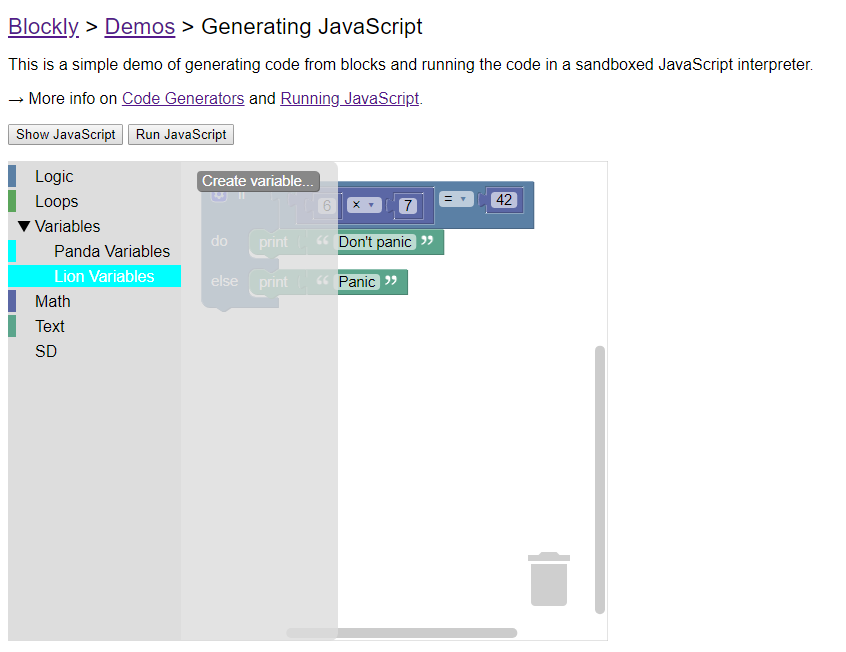
i.e., two variable types. Each has a 'Create variable...' button but when the the variables created they are accepted by all inputs, even where the definition includes 'check' statements to restrict the types. I was rather hoping that I could use the variableTypes array in the getter/setter code, i.e.,
"variableTypes": ["Panda", "Lion", "Badger"]In summary, is there a better way to enable the user to create variables of different types and, if so, where is the best place to colour-code the types?
Many thanks,
Hugh
---------------------------------------------------------------------------------------------------------- Changes/content --------------------------------------------------------------
My project sits in a folder structure, thus:
Blockly/demos/generator/test.html
       /blockly_compressed.js
       /blocks_compressed.js
       /javascript_compressed.js
       /msg/js/en.js
       /blocks/state_def.js
       /generators/javascript/state_defs.js
In the new javascript generator file 'state_defs.js' in the /generators/ folder:
Blockly.JavaScript['bin_storenum'] = function(block) {
                                                      var number_name = block.getFieldValue('NAME');
                                                      var value_bin = Blockly.JavaScript.valueToCode(block, 'Bin', Blockly.JavaScript.ORDER_ATOMIC);
                                                      var number_index = block.getFieldValue('Index');
                                                      var value_location = Blockly.JavaScript.valueToCode(block, 'Location', Blockly.JavaScript.ORDER_ATOMIC);
                                                      var value_bin_name = Blockly.JavaScript.valueToCode(block, 'Bin Name', Blockly.JavaScript.ORDER_ATOMIC);

                                                      // TODO: Assemble JavaScript into code variable.
                                                     console.debug(value_bin_name);
                                                     var code = value_bin_name + ".STORENUM(" + number_index + ") = " + (value_bin);

                                                     return code;
                                                    };
In the html file:
The two script files are referenced:
<script src="../../blocks/state_defs.js"></script>
<script src="../../generators/javascript/state_defs.js"></script>
and, in the Toolbox section:
<category name="Variables">
                           <category name="Panda Variables" custom="VARIABLE" colour=#00FFFF>
                                          <button text="A button" callbackKey="myFirstButtonPressed"></button>
                           </category>

                          <category name="Lion Variables" custom="VARIABLE" colour=#00FFFF>
                                          <button text="A button" callbackKey="mySecondButtonPressed"></button>
                          </category>
</category>
and, at the bottom of the <script> element of the HTML file:
demoWorkspace.registerButtonCallback('myFirstButtonPressed',function(button){
                                                                             Blockly.Variables.createVariable(
                                                                                                              button.getTargetWorkspace(), null, 'panda'
                                                                                                             )
                                                                             }
                                     );

demoWorkspace.registerButtonCallback('mySecondButtonPressed',function(button){
                                                                              Blockly.Variables.createVariable(
                                                                                                               button.getTargetWorkspace(), null, 'lion'
                                                                                                              )
                                                                             }
                                     );
In the new block definition file, parsing the JSON definition of the custom block:
Blockly.Blocks['bin_storenum'] = {
                                   init: function() {
                                                     this.jsonInit(
                                                                    {
                                                                      "type": "bin_storenum",
                                                                                                                                        "message0": "Store Number in Bin %1 Value %2 %3 Location %4 %5 Bin Name %6",
                                                                                                                                         "args0": [
                                                                                    {
                                                                                      "type"  : "input_dummy"
                                                                                    },
                                                                                    {
                                                                                      "type"  : "field_number",
                                                                                      "name"  : "NAME",
                                                                                      "value" : 0
                                                                                    },
                                                                                    {
                                                                                      "type"  : "input_value",
                                                                                      "name"  : "Bin",
                                                                                      "align" : "RIGHT"
                                                                                    },
                                                                                    {
                                                                                     "type"   : "field_number",
                                                                                     "name"   : "Index",
                                                                                     "value"  : 0,
                                                                                     "min"    : 0,
                                                                                     "max"    : 100
                                                                                    },
                                                                                    {
                                                                                     "type"   : "input_value",
                                                                                     "name"   : "Location",
                                                                                     "check"  : "Pig",
                                                                                     "align"  : "RIGHT"
                                                                                    },
                                                                                    {
                                                                                     "type"   : "input_value",
                                                                                     "name"   : "Bin Name",
                                                                                     "check"  : "Panda",
                                                                                     "align"  : "RIGHT"
                                                                                    }
                                                                             ],
                                                                      "previousStatement": null,
                                                                      "nextStatement": null,
                                                                      "colour": 330,
                                                                      "tooltip": "",
                                                                      "helpUrl": ""

                                                                      }
                                                      )
                                          }
  }
In the javascript file 'state_defs.js' in the /blocks/ folder, within the "Blockly.defineBlocksWithJsonArray([" function:
// Block for Panda variable getter.
 {
  "type": "variables_get_panda",
  "message0": "%1",
  "args0": [
             {
              "type": "field_variable",
              "name": "VAR",
              "variable": "%{BKY_VARIABLES_DEFAULT_NAME}",
              "variableTypes": ["Panda"]    // Specifies what types to put in the dropdown
             }
           ],
           "output": "Panda",    // Returns a value of "Panda"
 },


 // Block for Panda variable setter.
 {
  "type": "variables_set_panda",
  "message0": "%{BKY_VARIABLES_SET}",
  "args0": [
            {
             "type": "field_variable",
             "name": "VAR",
             "variable": "%{BKY_VARIABLES_DEFAULT_NAME}",
             "variableTypes": ["Panda"]
            },
           {
            "type": "input_value",
            "name": "VALUE",
            "check": "Panda"    // Checks that the input value is of type "Panda"
           }
          ]
},


// Block for LION variable getter.
 {
  "type": "variables_get_lion",
  "message0": "%1",
  "args0": [
            {
              "type": "field_variable",
              "name": "VAR",
              "variable": "%{BKY_VARIABLES_DEFAULT_NAME}",
              "variableTypes": ["Panda"]    // Specifies what types to put in the dropdown
            }
           ],
  "output": "Lion",    // Returns a value of "Panda"
},


 // Block for LION variable setter.
{
  "type": "variables_set_lion",
  "message0": "%{BKY_VARIABLES_SET}",
  "args0": [
            {
             "type": "field_variable",
             "name": "VAR",
             "variable": "%{BKY_VARIABLES_DEFAULT_NAME}",
             "variableTypes": ["lion"]
            },
            {
             "type": "input_value",
             "name": "VALUE",
             "check": "lion"    // Checks that the input value is of type "Panda"
            }
           ],
}
  "previousStatement": null,
  "nextStatement": null,

}
Erik Pasternak
Oct 10, 2018, 10:41:59 AM10/10/18
to Blockly
Hi Hugh,
We don't have much in the way of UI for typed variables yet, so there will be a bit of work to get what you want.
To "add a new category in the toolbox by which a user can add a new variable of a selectable type and the variables are coloured according to their type" I can see a few options for implementation, depending on the design you want.
- You could add multiple buttons to a single category for creating the three variable types.
- You could have a single button show a popup to select the variable type and name.
- You could keep multiple variable categories as you have in your demo.
For having them each be a different color, the blocks you have will work if you add the "colour" tag to your JSON. If you wanted to get fancy, you could have a single getter/setter that mutates the block to change the output/input type and colour based on the selected block (see the variables_dynamic blocks as an example).
You will also still need to create a custom dynamic category to show the variable blocks you want. The dynamic variables flyout is a good example here.
Let us know if you have specific questions or I've missed something about your use case.
Cheers,
Erik
Hugh Neve
Oct 10, 2018, 12:38:19 PM10/10/18
to Blockly
Thanks Erik,
I think the dynamic categories/variables are beyond my skills!
Hugh Neve
Oct 11, 2018, 4:56:14 AM10/11/18
to Blockly
Hi Erik,
Is there anything in the development roadmap that might make this more straightforward?
Thanks,
Hugh
On Wednesday, 10 October 2018 15:41:59 UTC+1, Erik Pasternak wrote:
Erik Pasternak
Oct 11, 2018, 9:31:49 AM10/11/18
to Blockly
It's on our list to continue work on typed variables and add better example UIs, but there's no timeline on them.
If you start from the regular variables flyout I don't think you'll need many modifications to list the variables in separate categories. Just change the type you pass to getVariablesOfType and the get and set block types for each category.
Message has been deleted
Message has been deleted
Hugh Neve
Oct 12, 2018, 6:00:25 AM10/12/18
to Blockly
I've had to give up on this and put it on the 'too difficult' pile.
Hugh Neve
Oct 16, 2018, 8:41:17 AM10/16/18
to Blockly
This is a summary of my efforts to date, which relate to types 'bin', var' and 'prm':
In the core/variables.js file,
Blockly.Variables.createVariable
Where, and in what form, should I place the getters and setters? I'm sure I've seen a function in one of the core files that creates getters and setters for all variables?
In my HTML file (the 'Generate Code' demo, I have added three custom toolbox categories:
<category name="Desired variables">
          <category name="bin" custom="VARIABLE">
                    <button text="A button" callbackKey="binButtonPressed" type="bin"></button>
          </category>

          <category name="var" custom="VARIABLE">
                    <button text="A button" callbackKey="varButtonPressed" type="var"></button>
          </category>

          <category name="prm" custom="VARIABLE">
                    <button text="A button" callbackKey="prmButtonPressed" type="prm"></button>
         </category>
 </category>
and added the callbacks within the <script> tags of the same file:
demoWorkspace.registerButtonCallback('binButtonPressed',function(button){
                                                                         Blockly.Variables.createVariable(
                                                                                                          button.getTargetWorkspace(), null, 'bin'
                                                                                                          )
                                                                         }
                                     );


demoWorkspace.registerButtonCallback('binButtonPressed',function(button){
                                                                         Blockly.Variables.createVariable(
                                                                                                          button.getTargetWorkspace(), null, 'var'
                                                                                                          )
                                                                         }
                                     );


demoWorkspace.registerButtonCallback('prmButtonPressed',function(button){
                                                                         Blockly.Variables.createVariable(
                                                                                                          button.getTargetWorkspace(), null, 'prm'
                                                                                                         )
                                                                        }
                                     );
In the core/variables.js file,
Blockly.Variables.createVariable
already calls
Blockly.Variables.createVariableButtonHandler;
In the file core/variables_dynamic.js
Blockly.VariablesDynamic.onCreateVariableButtonClick_Bin = function(button) {
                                                                             Blockly.Variables.createVariableButtonHandler(button.getTargetWorkspace(), null, 'bin');
                                                                            };

Blockly.VariablesDynamic.onCreateVariableButtonClick_Var = function(button) {
                                                                             Blockly.Variables.createVariableButtonHandler(button.getTargetWorkspace(), null, 'var');
                                                                            };

Blockly.VariablesDynamic.onCreateVariableButtonClick_Prm = function(button) {
                                                                             Blockly.Variables.createVariableButtonHandler(button.getTargetWorkspace(), null, 'prm');
                                                                            };
and the callbacks
workspace.registerButtonCallback('CREATE_VARIABLE_BIN',
      Blockly.VariablesDynamic.onCreateVariableButtonClick_Bin);

workspace.registerButtonCallback('CREATE_VARIABLE_VAR',
      Blockly.VariablesDynamic.onCreateVariableButtonClick_Var);

workspace.registerButtonCallback('CREATE_VARIABLE_PRM',
      Blockly.VariablesDynamic.onCreateVariableButtonClick_Prm);
and changed
Blockly.VariablesDynamic.flyoutCategoryBlocks = function(workspace) {
  var variableModelList = workspace.getAllVariables();
  variableModelList.sort(Blockly.VariableModel.compareByName);
to use the compareByType method
Blockly.VariablesDynamic.flyoutCategoryBlocks = function(workspace) {
  var variableModelList = workspace.getAllVariables();
  variableModelList.sort(Blockly.VariableModel.compareByType);
Where, and in what form, should I place the getters and setters? I'm sure I've seen a function in one of the core files that creates getters and setters for all variables?
Any pointers (excuse the pun) would be gratefully received...
Thanks,
Hugh
Erik Pasternak
Oct 16, 2018, 11:58:17 AM10/16/18
to Blockly
Hi Hugh,
That's the variables flyout link I sent in an earlier reply. If you create three versions of that and have them generate the getters and setters for each type those can be your custom flyouts.
Cheers,
Erik
Hugh Neve
Oct 17, 2018, 1:54:02 AM10/17/18
to Blockly
Thanks Erik!
Reply all
Reply to author
Forward
0 new messages