
Beast2 v2.6.7 screen log font size issue
73 views
Skip to first unread message

Qiao
Sep 11, 2022, 2:16:37 PM9/11/22
to beast-users
Dear BEAST users,

When I tried to run an analysis with BEAST2 today, the font size on the screen log became very tiny (see screenshot). This has not happened before and I haven't changed any setting on my PC.
Has anyone run into this issue before? Is there a way to make the screen log bigger?
Thank you for any advice in advance.

higg...@gmail.com
Sep 11, 2022, 11:23:21 PM9/11/22
to beast-users
Hi Qiao,
It is probably easiest to set up the screen resolution in BEAUti, where you can change it using the "View/Zoom in” and “View/Zoom out” menu items. The resolution is stored in the beaut.properties file in the BEAST package directory, and used by the other BEAST applications.
Alternatively, you can edit the beauti.properties file directly and set the resolution using a “fontsize” entry , for example “fontsize=14”.
Hope this helps,
Remco
Qiao
Sep 12, 2022, 3:36:58 PM9/12/22
to beast-users
Dear Remco,
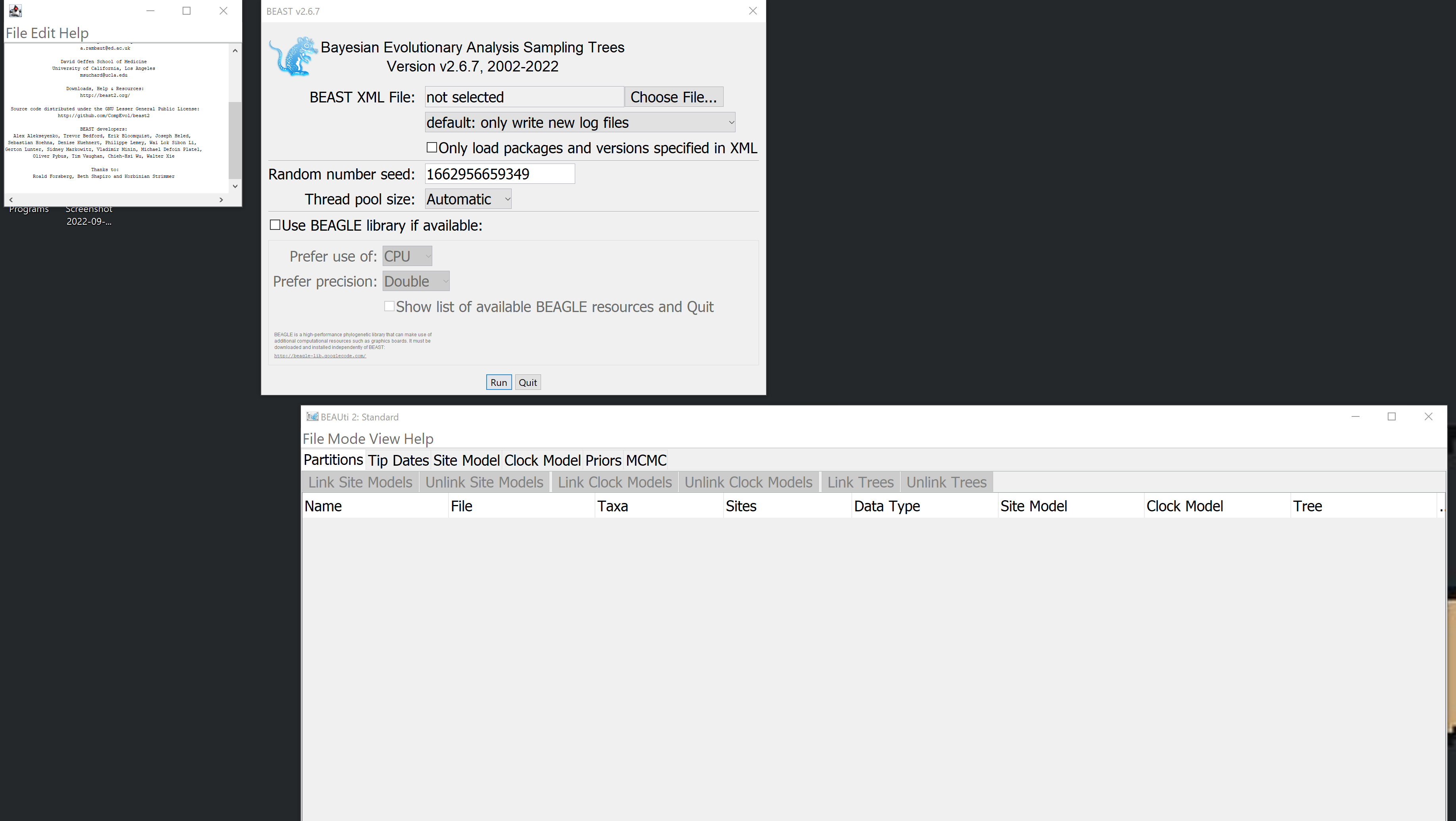
Thank you for your kind directions. However, I tried the
"View/Zoom in” and “View/Zoom out” in BEAUti, and it has not affected the screen log size of BEAST (see left top corner of the screen log; but the font size in BEAST window where I can choose the xml file did become bigger). The beauti.properties file is displaying fontsize=37 after I zoomed in.
higg...@gmail.com
Sep 12, 2022, 3:48:16 PM9/12/22
to beast-users
Hi Qiao,
It is a bit of a mystery to me why the console is not showing the right size. Could you try to install BEAST v2.7.0 and see whether the problem persists? It may be a good alternative if the kind of analysis you want to do only relies on packages that are already migrated to v2.7.0.
An alternative is to use BEAST from the command prompt: in the folder where you have installed BEAST, there is a folder called "bat" that contains "beast.bat". You can run that by opening a command prompt and run
\path\to\BEAST\bat\beast.bat beast.xml
where "\path\to" the path to where BEAST is installed, and "beast.xml" the name of the XML file you want to run.
Regards,
Remco
Qiao
Sep 21, 2022, 3:57:44 PM9/21/22
to beast-users
Dear Remco,
I tried what you suggested:
1. running from command lines worked without an issue - however, is BEAGLE automatically detected or do I need to enter additional command options?
2. BEAST2 v2.7.0 also worked without the same issue - I suppose for "threads" in run options I should choose the maximum number of CPU threads if this is the only activity on my PC? Is that what v2.6.7 utilized by default? Also, how many "instances" do you recommend that I choose?
Thank you.
Reply all
Reply to author
Forward
0 new messages