
Solution for XModem/Comms issues with 8086 Consultancy USB comms device
235 views
Skip to first unread message

Gary Hammond
Apr 9, 2021, 10:05:01 PM4/9/21
to RC2014-Z80
After many,many hours of frustration, I have finally got my 8086 Consultancy USB to TTL Comms device working with hardware flow control! This is the device that I bought at the same time as buying the
RC2014 Pro Zedkit from the list of options to purchase.
I have dutifully read through the conversations here in the group trying to find out why I could receive an xmoden file from the RC2014 Pro Zed but not send a file to the
RC2014 Pro Zed. From the work of others, it was apparent that the hardware flow control was not working.
What it has turned out to be is that the hardware flow control was TURNED OFF when the HT42B534 bridge chip was re-programmed by 8086 Consultancy. It is possible to turn it back on again and here is what I did.
Instructions are for Windows 10
You will need to download Holtek USB bridge program and possibly the Holtek INI files from Holtek. I installed the Holtek INI files and changed the driver for the Com port to the Holtek drivers before I discovered the reprogramming trick so it may not be necessary to do this.
Open up the device manager and find the COM port device.
Open up the properties and go to the details tab

The 2 items you are interested in are the VID and the PID. Mine are VID = 3171 and PID = 0035.
Install the Holtek USB Bridge Program and run it.
You will see something like
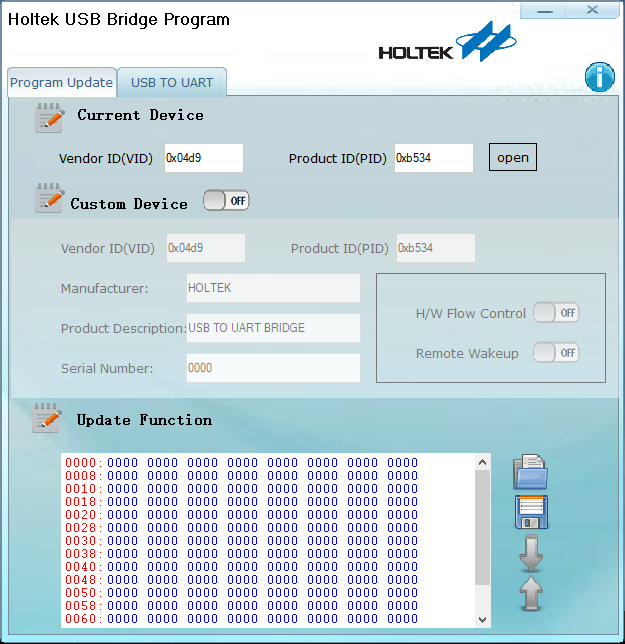
Clicking on open doesn't do anything because its the wrong VID and PID. Change the values in the current device area to those that you have obtained earlier. Then click on open. You should get an 'Open device success!" dialog.
At the bottom of the Holtek program is an upward facing arrow. Click on it and it should update the Custom Device fields.

In my case both the H/W Flow Control and Remote Wakeup were in the OFF position. Change the H/W Flow Control to ON and optionally the Remote Wakeup as well.
To save the settings click on the downward facing arrow at the bottom of the Holtek program which will program the updated settings to the device. If it works you will get a "Download device information success!" dialog.
Close the program, remove the USB device and re-insert it. H/W flow control should now be working.
Enjoy!
Gary Hammond
Apr 9, 2021, 10:43:31 PM4/9/21
to RC2014-Z80
I should also have said that this solution is for a specific USB serial converter so don't do the above unless you have the converter with the HT42B534
chip on it. If you get a decent magnifying glass, you can just make out the part number if you tilt the board just so and hang you tongue out in the right way.


william brown
Apr 10, 2021, 2:56:27 AM4/10/21
to rc201...@googlegroups.com
hello
can anybody help.the FTDI 8086 board with my RC2014 home brew kit now built and working in windows 10. except for
windows 7 which is off line.the driver is not working it says something about the serial stub not installed.i did install
what i thought was the correct driver.i am using tera term.i did put the win7 on line to see if it would update it but no luck.
as i said windows 10 on line works perfectly.thanks for any help.
bill brown
On Sat, Apr 10, 2021 at 3:43 AM Gary Hammond <gfha...@gmail.com> wrote:
I should also have said that this solution is for a specific USB serial converter so don't do the above unless you have the converter with the HT42B534 chip on it. If you get a decent magnifying glass, you can just make out the part number if you tilt the board just so and hang you tongue out in the right way.

--
You received this message because you are subscribed to the Google Groups "RC2014-Z80" group.
To unsubscribe from this group and stop receiving emails from it, send an email to rc2014-z80+...@googlegroups.com.
To view this discussion on the web, visit https://groups.google.com/d/msgid/rc2014-z80/d33aeda1-c6f8-4124-af6c-eb9a216b1a2dn%40googlegroups.com.

Wesley Isacks
Apr 11, 2021, 3:27:23 PM4/11/21
to RC2014-Z80
This is great information, thank you!
-Wesley

Spencer Owen
Apr 12, 2021, 8:28:14 AM4/12/21
to rc201...@googlegroups.com
Hi Gary,
Thank you for picking up on this, and for the detailed information on fixing the issue.
Although I randomly test the occasional adapter, it only normally goes as far as plugging it in to an RC2014, booting up and typing a simple 10 PRINT GOTO 10 type program before I conclude that it works fine. Testing the hardware flow control isn't something I'd really considered before.
Luckily this seems to be right at the start of the batch, so I don't think many are out there in the wild. I've been through a pile of them this morning, though, and they have now been reprogrammed.
Cheers
Spencer
--
You received this message because you are subscribed to the Google Groups "RC2014-Z80" group.
To unsubscribe from this group and stop receiving emails from it, send an email to rc2014-z80+...@googlegroups.com.
To view this discussion on the web, visit https://groups.google.com/d/msgid/rc2014-z80/bf02d26b-c388-47a4-ba78-01de3d9f88a1n%40googlegroups.com.
Reply all
Reply to author
Forward
0 new messages