
[Inside AdSense] Spotlight on the Custom Search Element
1 view
Skip to first unread message

Inside AdSense Team
Oct 20, 2009, 2:02:03 PM10/20/09
to inside-...@googlegroups.com
Recently, we introduced Google Web Elements as a new way to easily add dynamic content to your site. In this post, we'd like to focus on one of the Web Elements which you can use to earn more revenue: the Custom Search Element.
As our optimization tips point out, adding search functionality to your site can improve the user experience on your pages and overall make your site "sticky". Here are some commonly asked questions about the Custom Search Element to help you get started:
Q: What do I need to do in order to start earning revenue with the Custom Search Element?
The first thing you should do is activate AdSense for search in your AdSense account. Sign in to your AdSense account and visit the AdSense Setup tab. Then, choose 'AdSense for search'. Once you click the "Get started" button, your account will be activated.
After you've activated AdSense for search, the next steps depend on whether you're creating a Custom Search Element that searches your own site or one that uses an existing Custom Search Engine to search across multiple sites of your choice.
No. By default, the Custom Search Element wizard gives you the option of searching only your own website. However, if you wish to have your element search websites other than your own, you'll need to first create a Custom Search Engine at www.google.com/cse/manage/create.
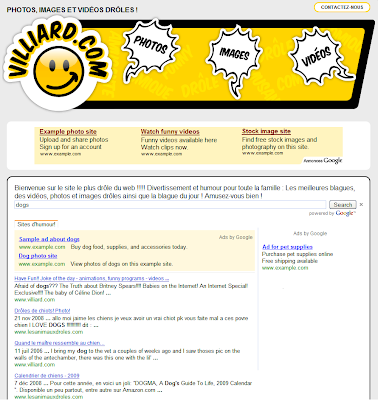
Here are a few examples of publishers who've implemented the Custom Search Element:
Yin Yang House
On the Yin Yang House site, search results using the Custom Search Element appear inline on the page, allowing users to search without leaving the current page context.

Digital Inspiration

Villiard.com
For publishers who like to tinker with code, you might find this post useful - it outlines how to further customize your Custom Search Element with CSS and JavaScript.
If you'd like to share your use of the Custom Search Element, leave us a comment! We'd love to see what you've done.
Posted by Christine Tsai - Google Web Elements Team
--
Posted By Inside AdSense Team to Inside AdSense at 10/20/2009 11:01:00 AM
As our optimization tips point out, adding search functionality to your site can improve the user experience on your pages and overall make your site "sticky". Here are some commonly asked questions about the Custom Search Element to help you get started:
Q: What do I need to do in order to start earning revenue with the Custom Search Element?
The first thing you should do is activate AdSense for search in your AdSense account. Sign in to your AdSense account and visit the AdSense Setup tab. Then, choose 'AdSense for search'. Once you click the "Get started" button, your account will be activated.
After you've activated AdSense for search, the next steps depend on whether you're creating a Custom Search Element that searches your own site or one that uses an existing Custom Search Engine to search across multiple sites of your choice.
If you're creating a Custom Search Element that searches your own site:Q: Do I need to create a Custom Search Engine in order to use the Custom Search Element?
- You can create your Custom Search Element from the Web Elements site at www.google.com/webelements/customsearch/.
- Under "Configure", be sure to select "Search my site and use AdSense for search."
- In the AdSense Publisher ID field, be sure to enter your unique publisher ID properly (should start with "pub-"). You can learn how to find your publisher ID in our Help Center.
If you're creating a Custom Search Element that uses an existing Custom Search Engine:
- Link your AdSense account to your Custom Search account from the Custom Search control panel as follows:
- First, go to your search engines at www.google.com/cse/manage/all.
- Click the "control panel" link for the corresponding Custom Search Engine.
- In the left-hand navigation bar under "Control panel", click "Make Money".
You'll be taken to a page like below where you can link your Custom Search Engine account to your AdSense account. All you need to do is input your AdSense account information.


No. By default, the Custom Search Element wizard gives you the option of searching only your own website. However, if you wish to have your element search websites other than your own, you'll need to first create a Custom Search Engine at www.google.com/cse/manage/create.
Here are a few examples of publishers who've implemented the Custom Search Element:
Yin Yang House
On the Yin Yang House site, search results using the Custom Search Element appear inline on the page, allowing users to search without leaving the current page context.

Digital Inspiration

Villiard.com

For publishers who like to tinker with code, you might find this post useful - it outlines how to further customize your Custom Search Element with CSS and JavaScript.
If you'd like to share your use of the Custom Search Element, leave us a comment! We'd love to see what you've done.
Posted by Christine Tsai - Google Web Elements Team
--
Posted By Inside AdSense Team to Inside AdSense at 10/20/2009 11:01:00 AM
Reply all
Reply to author
Forward
0 new messages